Version: 0.21.0This documentation is for Spitfire 0.21.0.
Test data
A realistic load test needs more than every VU buying the same product with the same user name: different user accounts, different product ids, valid TC kimlik numbers, tokens received at login… This page covers where test data can come from in Spitfire, how CSV data files are uploaded and bound to a test, the fake data generators, passing values between steps, and where sensitive values such as passwords belong.
What it is for
- The rows of the CSV files you upload on the Data files page are handed out to iterations: every iteration takes one row from each data binding.
- Rows can be given in order, at random or once each over the run; with several runners the rows are split between them.
- Syntaxes such as
{{fake.tckn}},{{fake.iban}},{{fake.phone}}(fake data) make a new, algorithmically valid piece of Turkish test data on every use. - A value taken from a step's response with an extractor is used in later steps.
When to use it
- When every VU must log in with a different user (e-mail and password in a CSV).
- When different records must be read so the cache does not flatter the results (product or customer ids in a CSV).
- When endpoints with form validation (TCKN, IBAN, phone) must receive values that look valid (fake data).
- When every record must be used only once (e.g. single-use coupons: Unique mode).
Data sources
| Source | Syntax | Where it is defined | When it changes |
|---|---|---|---|
| Test variable | {{base}} |
Editor → General & variables → Variables | Fixed in the test; can be changed per environment or run |
| Data file column | {{users.email}} |
Data files + editor → Data (CSV) | A new row every iteration |
| Fake data | {{fake.email}} |
Nowhere; written directly | A new value on every use |
| Extracted value | {{token}} |
Step → Extract | Every time the step runs |
| Built-in values | {{__VU}}, {{__ITER}}, {{$uuid}}, {{$randInt 1 100}}… |
Built in | On every use / every iteration |
For the full list of built-in values see Test editor.
Uploading a CSV data file
- Go to Data files in the left menu (Data files
In Spitfire: /data-files). - Click Upload CSV at the top right. The Upload a data file dialog opens.
- Choose the file in the CSV file field. Rules:
- The first row is the header: column names are letters, digits or
_and do not start with a digit (email,password,customer_id). Non-ASCII letters, spaces and hyphens are not allowed. - A column name cannot appear twice; at most 100 columns.
- There must be at least one data row after the header.
- The file can be at most 20 MB.
- The BOM in Excel's "CSV UTF-8" output is not a problem.
- The first row is the header: column names are letters, digits or
- Type a name for the file in the Name field (the name shown in the list).
- Click Upload CSV. The file appears in the list with its columns, row count, size and upload date.
- The eye icon at the right of the row (Preview) shows the first 20 rows and Used by tests.
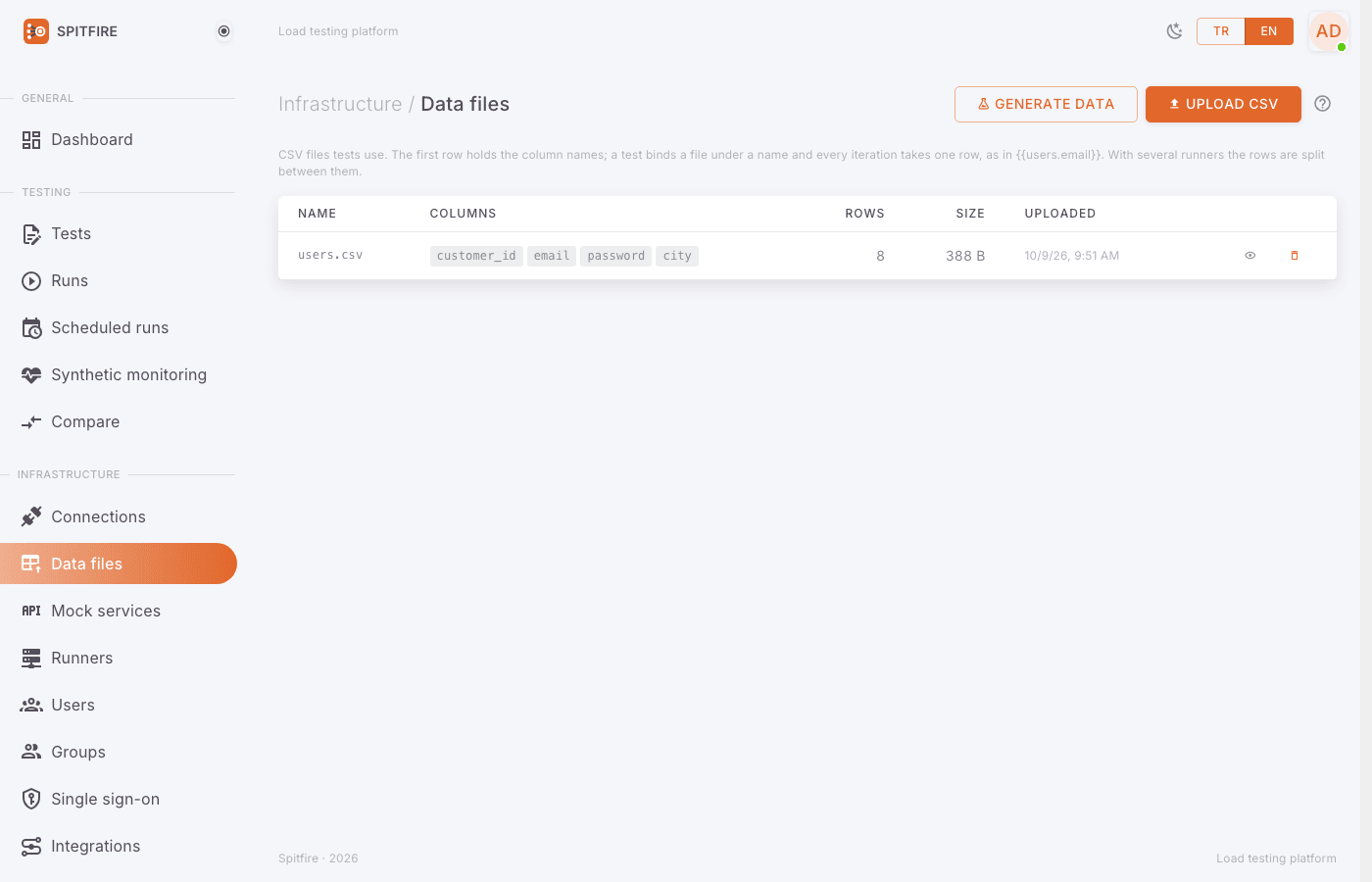 Data files page
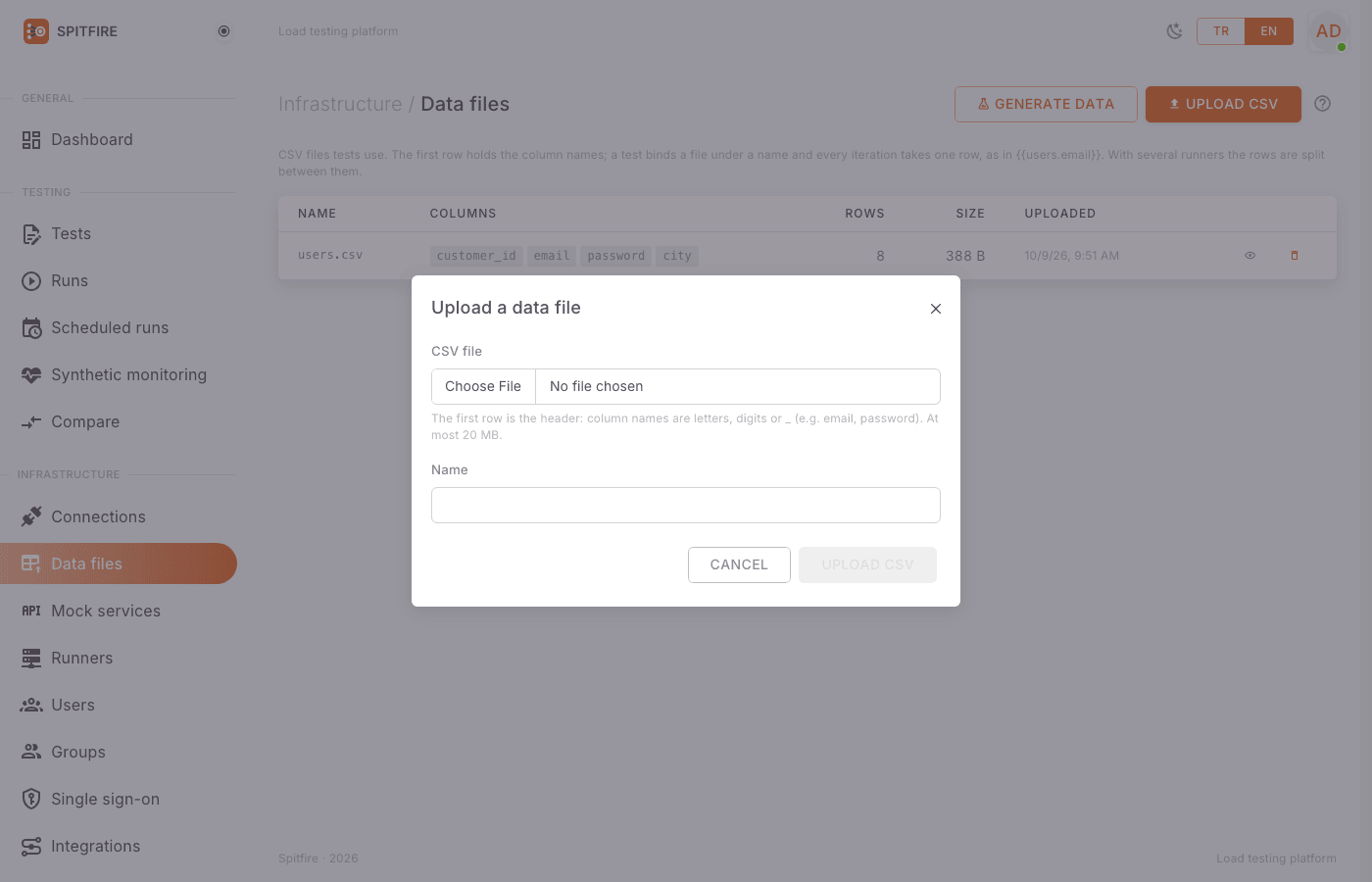 Upload a data file dialog
Example users.csv:
email,password,customer_id
ayse.demir@example.com,Test1234!,100231
mehmet.kaya@example.com,Test1234!,100232
zeynep.yilmaz@example.com,Test1234!,100233 Preview dialog: the first 20 rows and the tests using the file
A data file used by a test cannot be deleted: "It cannot be deleted while a test uses it." Remove the data binding from those tests first.
Generating a data file
For a file with thousands of rows without using real customer data, use Data files → Generate data:
- Click Generate data on the Data files page. The Generate test data dialog opens.
- Type the file name in the Name field (e.g.
customers). - Type the number of rows in the Rows field: 1 to 50,000.
- Tick the value kinds you want in the table (TC kimlik no, IBAN (TR), Mobile phone, First name, Last name, Full name, E-mail, Province (il), District (ilçe), Address, Date) and change the Column name if needed. For Date, From and To can be set.
- Click Generate and save. The file is added to the list; it is bound to a test like an uploaded CSV.
"The columns of one row describe one person: the e-mail is made from the name and the
district belongs to the province." So the name, e-mail and address in one row are
consistent with each other, while {{fake.*}} syntaxes make independent values on every
use.
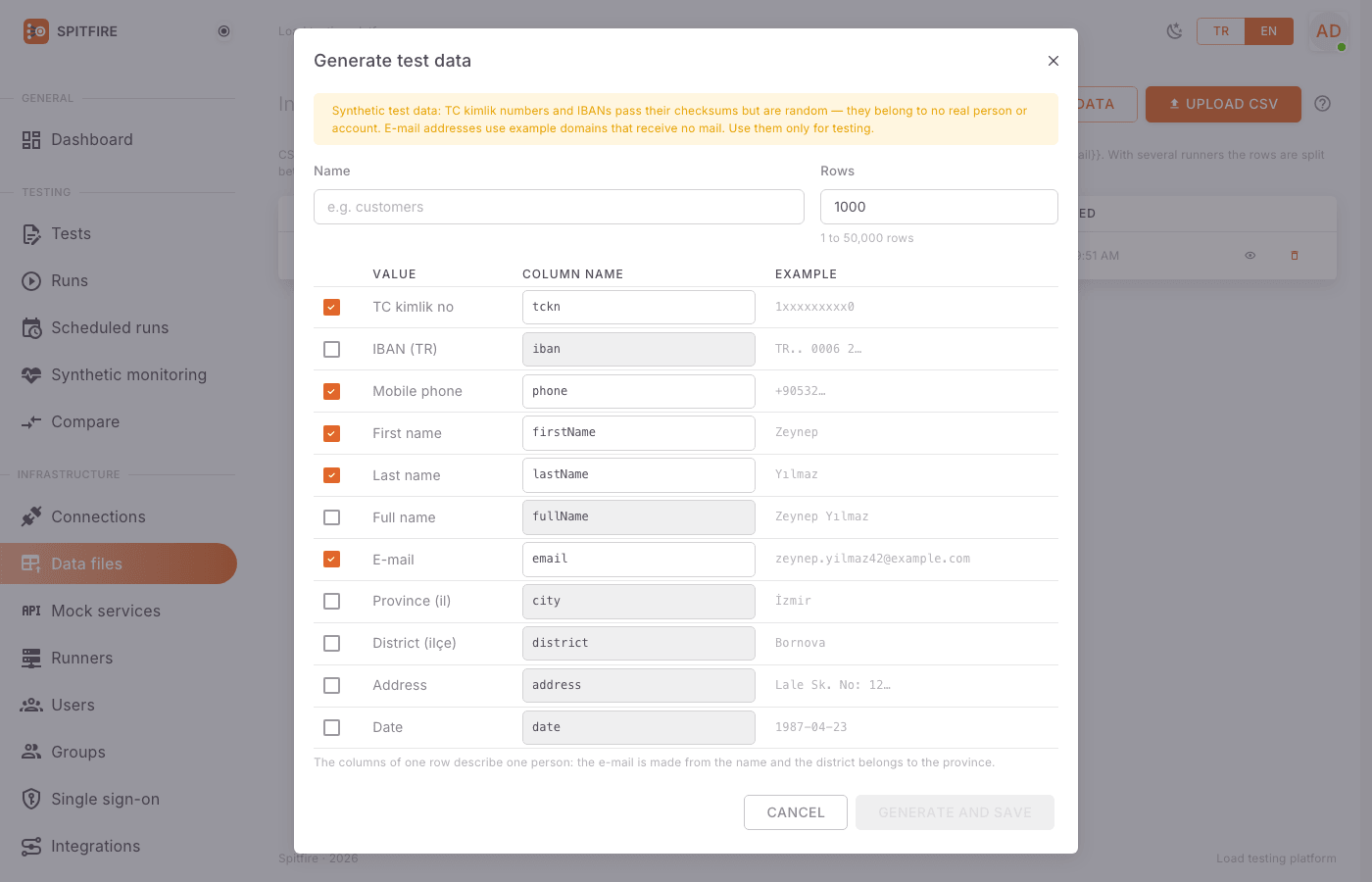 Generate test data dialog
Binding a data file to a test
An uploaded file is attached to a test with a data binding. The binding's name is the name written in front of the columns in templates.
- Open the test in the editor and switch to the General & variables tab.
- Find the Data (CSV) section in the right column. If there are no files yet it says "Upload a CSV first:" with a Data files link.
- Click Add a data binding. A row is added.
- Type the binding's name in the Name field (e.g.
users). Rules: letters, digits,_; not starting with a digit; unique in the test; the namefakecannot be used (it is reserved for fake data). - Pick the uploaded file in the File list.
- Pick Sequential, Random or Unique in the Mode list (below).
- Under the row, the syntaxes you can use are listed:
{{users.email}},{{users.password}},{{users.customer_id}}. - Use them in steps, e.g. in the login body:
{"email": "{{users.email}}", "password": "{{users.password}}"}. - Check with Try it, then save.
 Data (CSV) section on the General & variables tab
The hint on screen states the most important rule: "Every iteration takes one row from each binding; all steps of that iteration see the same row." A scenario takes rows only from the bindings its own steps use; a scenario that never uses a binding consumes no rows from it.
In JSON (dataFileId is the file's id; the editor fills it in when you pick the file):
"data": [
  { "name": "users", "dataFileId": "8d3c1f6e-2b7a-4f1e-9c55-0a6b2e4d9f10", "mode": "unique" }
]Binding modes
| Mode | JSON | How it works | When |
|---|---|---|---|
| Sequential | sequential |
"Rows are handed out in order and wrap around. Runners split the rows and never share one." | Most cases; balanced use of the rows. |
| Random | random |
"A random row every iteration; rows can repeat." | Read-heavy tests, id lists. |
| Unique | unique |
"Each row is used at most once in the whole run. When they run out, VUs stop starting iterations and the run ends at its planned time." | Single-use coupons, users that can register only once, data loading. |
Several runners
When a run is spread over several runners:
- Sequential and Unique: each runner takes its own contiguous part of the file; no two runners use the same row. In Sequential mode, when there are more runners than rows, every runner uses the whole file; in Unique mode this does not happen (so rows do not repeat).
- Random: every runner gets the whole file.
In Unique mode, if there are fewer rows than the iterations the run will
make, the load drops when the rows run out: VUs stop starting iterations (in open models
the timetable stops), but the run goes on until its planned end. Check the total
iterations on the plan chart and prepare the file accordingly. It is ideal with the
shared-iterations model for "process every row once" jobs.
In comparative runs
In comparative (A/B) runs, Unique bindings are split into two equal halves for the two arms (A takes the first half, B the second; with an odd number of rows the last row is not used), so the arms never use the same row. With Sequential and Random bindings both arms read the whole file. In a sequential comparison, too, every turn takes its own equal slice of a Unique file.
Fake data
Fake data is synthetic Turkish data generated on the runner during the test. It is written in any template field of a step and makes a new value on every use.
| Syntax | Value |
|---|---|
{{fake.tckn}} |
An 11-digit TC kimlik number whose check digits are valid |
{{fake.iban}} |
A TR IBAN with a valid mod-97 check digit and a real bank code |
{{fake.phone}} |
A mobile number, +905XXXXXXXXX |
{{fake.firstName}}, {{fake.lastName}}, {{fake.fullName}} |
Turkish first name, last name, full name |
{{fake.email}} |
name.surname42@example.com (example domains that receive no mail) |
{{fake.city}}, {{fake.district}} |
Province and district (all 81 provinces) |
{{fake.address}} |
An address like Cumhuriyet Mah. Lale Sk. No: 12 Daire: 3, 35040 Bornova/İzmir |
{{fake.date}} |
A day between 1960 and 2005 (YYYY-MM-DD) |
{{fake.date 2024-01-01 2024-12-31}} |
A day in the given range (both ends included) |
To copy one: expand Synthetic test data (fake.…) in a step card and click the button of the syntax you want (it is copied to the clipboard).
 Fake data buttons in a step card
Example: a registration form body
{
  "tckn": "{{fake.tckn}}",
  "name": "{{fake.fullName}}",
  "email": "{{fake.email}}",
  "phone": "{{fake.phone}}",
  "iban": "{{fake.iban}}",
  "birthDate": "{{fake.date 1970-01-01 2000-12-31}}",
  "city": "{{fake.city}}"
}These values are synthetic test data. A TC kimlik number or IBAN passes the checksum validation forms do, but it is random digits; it belongs to no real person or account. Don't use them outside testing.
Good to know:
- Writing
{{fake.email}}twice in the same step gives two different e-mails. To use the same value in two places, either create a file with Generate data and bind it, or send the value in one step and extract it from the response. - Giving an argument to a generator that takes none (
{{fake.tckn 5}}) and an unknown name ({{fake.tc}}) are template errors; the error message lists the known names. - A date range uses
YYYY-MM-DD, and the end cannot be before the start.
Passing values between steps
The way to use a value from a step's response in later steps is an extractor (details: Test editor).
Scope of values:
- Per VU: every VU has its own copy of the variables. A token one VU received does not pass to another VU.
- Across iterations: an extracted value stays in the VU's later iterations (until the next extraction changes it). That is how the token of a login step marked Run once per VU is used in all iterations.
- When not found: the value does not linger from the previous iteration; it falls back to the extractor's default, otherwise to the test's variable of the same name, otherwise to an empty string.
- Data row: all steps of an iteration see the same row; the next iteration takes a new row.
A typical flow:
loginstep (Run once per VU ticked):{{users.email}}and{{users.password}}in the body; Extract:token← JSONPath$.access_token.create_orderstep: headerAuthorization: Bearer {{token}}; Extract:orderId← JSONPath$.id.get_orderstep: URL{{base}}/api/orders/{{orderId}}.
In the Try it window each step shows its "Extracted" variables and the bottom shows the Final VU variables; check there that the values flow correctly.
 Extracted values in the Try window
Passwords and sensitive values
Spitfire has no separate secret vault for templates. It matters to know what goes where:
| Value | Where to keep it | Why |
|---|---|---|
| Database, Kafka, RabbitMQ, Redis, MongoDB, gRPC passwords | A saved connection on the Connections page | Connection secrets are stored encrypted and never enter the test definition; the step only holds the connection's name. |
| Client certificate and key (mTLS) | Connections → Client certificate (mTLS) | The key is stored encrypted and never enters the test definition. |
| Test users' passwords | A CSV data file or a test variable | Both are stored unencrypted: variables in the test definition, the JSON and the version history; a CSV's content is visible in Preview. Use test accounts that belong to the test environment and have limited rights. |
| API key, token | Where possible, extract it from a login step | The token is obtained during the run, not stored in the test. |
More recommendations:
- Values given with Change variables for this run in the Run dialog are recorded on the run and shown on the run page; don't put production secrets there either.
- Failed request samples mask query values that look like secrets and URL passwords, and never keep cookies. If responses can still contain personal data, set Options → Failed request samples → Off in the editor.
- If you test against a production system, mark the steps that change data (This request changes data on the target); starting a run then asks for an extra confirmation.
Full example
Login with a user from the CSV, registration with fake data, and chaining with extractors:
{
  "version": 1,
  "name": "Customer registration and order",
  "variables": { "base": "https://shop.staging.example.com" },
  "data": [
    { "name": "users", "dataFileId": "8d3c1f6e-2b7a-4f1e-9c55-0a6b2e4d9f10", "mode": "sequential" }
  ],
  "options": {},
  "scenarios": [
    {
      "name": "register_and_order",
      "executor": { "type": "constant-vus", "vus": 20, "duration": "5m" },
      "steps": [
        {
          "id": "login",
          "name": "Login",
          "once": true,
          "protocol": "http",
          "request": {
            "method": "POST",
            "url": "{{base}}/api/login",
            "body": { "type": "json", "content": "{\"email\": \"{{users.email}}\", \"password\": \"{{users.password}}\"}" }
          },
          "extract": [ { "var": "token", "from": "jsonpath", "expr": "$.access_token" } ],
          "checks": [ { "type": "status", "op": "eq", "value": 200 } ]
        },
        {
          "id": "add_customer",
          "name": "Add customer",
          "protocol": "http",
          "request": {
            "method": "POST",
            "url": "{{base}}/api/customers",
            "headers": [ { "key": "Authorization", "value": "Bearer {{token}}" } ],
            "body": { "type": "json", "content": "{\"tckn\": \"{{fake.tckn}}\", \"name\": \"{{fake.fullName}}\", \"phone\": \"{{fake.phone}}\", \"iban\": \"{{fake.iban}}\"}" },
            "modifiesData": true
          },
          "extract": [ { "var": "customerId", "from": "jsonpath", "expr": "$.id" } ],
          "checks": [ { "type": "status", "op": "in", "value": [200, 201] } ]
        },
        {
          "id": "get_customer",
          "name": "Read customer",
          "protocol": "http",
          "request": {
            "method": "GET",
            "url": "{{base}}/api/customers/{{customerId}}",
            "headers": [ { "key": "Authorization", "value": "Bearer {{token}}" } ]
          },
          "checks": [
            { "type": "status", "op": "eq", "value": 200 },
            { "type": "jsonPath", "path": "$.id", "op": "exists" }
          ],
          "thinkTime": { "min": "1s", "max": "2s" }
        }
      ]
    }
  ],
  "thresholds": [
    { "metric": "req_failed", "expr": "rate<0.01" },
    { "metric": "req_duration", "expr": "p(95)<600" }
  ]
}
In SQL steps values go into the Parameters, not into the query; data columns and fake data can be parameter values:
"sql": {
"query": "SELECT id, status FROM orders WHERE customer_id = $1 ORDER BY created_at DESC LIMIT 10",
"params": [ "{{users.customer_id}}" ]
} SQL step form: query and parameters
Common problems
| Symptom | Cause | Fix |
|---|---|---|
On upload: column name email-address must be letters, digits or _ and not start with a digit |
A hyphen, space or non-ASCII letter in the header. | Rename the columns, e.g. email_address, and upload again. |
the file has no data rows (the first row is the header) |
There is only a header row. | Add at least one data row. |
not a valid CSV file: … |
A semicolon separator, an unclosed quote or rows with different column counts. | Save the file again with a comma separator as "CSV UTF-8". |
the file is larger than 20 MB |
The file limit is exceeded. | Drop unneeded columns, or split the file and use separate bindings. |
users has no column mail (columns: email, password) |
The column name in the template is not in the file. | Write it with the file's name, e.g. {{users.email}} (case-sensitive). |
unknown variable {user.email} |
The binding name is misspelled (user instead of users). |
Match the binding's Name and the template. |
data file not found (it may have been deleted) / "(file not found)" in the File list |
The bound file was deleted, or the test came from another installation. | Pick an existing file in the File list. |
fake is reserved for the generated test data (fake.tckn, fake.iban, …); choose another name |
A data binding is named fake. |
Choose another name. |
template error: unknown fake.tc (known: tckn, iban, …) |
Wrong fake data name. | Use one of the names in the table. |
| Load dropped in the middle of the run, VUs idle | The rows ran out in Unique mode. | Upload more rows, or switch to Sequential mode. |
| All VUs seem to log in with the same user | The user comes from a variable, not from a data file. | Add a data binding and use {{users.email}}. |
| A data file cannot be deleted | A test uses it. | Remove the data bindings of the tests listed in Used by tests in Preview. |
Related pages
- Test editor: extractors, checks and template rules.
- Load model: understanding iteration counts and the split across runners.
- Runs and results: changing variables per run.
- Data files
In Spitfire: /data-files· ConnectionsIn Spitfire: /connections