Version: 0.21.0This documentation is for Spitfire 0.21.0.
SQL: SSH tunnel
What it does
When your database cannot be reached directly but only through an SSH server (a bastion, jump host), a PostgreSQL, MySQL / MariaDB, SQL Server or Oracle connection can use an SSH tunnel. The controller (connection test, statistics reads, schema reads) and, during a run, every runner reach the database through an SSH client of their own:
- one SSH connection is opened per runner and connection, and that runner's whole database connection pool shares it;
- the SSH connection is kept alive and reconnected if it drops;
- the database's host name is resolved on the SSH server's side (e.g.
db.internalas the bastion sees it).
When to use it
- The database is on a private network and only a bastion is open to the outside.
- You want to use existing SSH access instead of opening the database port in the firewall.
Who can set it up
Only installation admins add, change or remove the tunnel. Other admins see, in the SSH tunnel section, only the existing tunnel's target (or None) and the note Only an installation admin can set up or change the SSH tunnel.; the API returns 403 ssh_install_admin_only to them. Workspace admins can still edit the rest of the connection. Fetch host key also needs a browser session.
Step by step
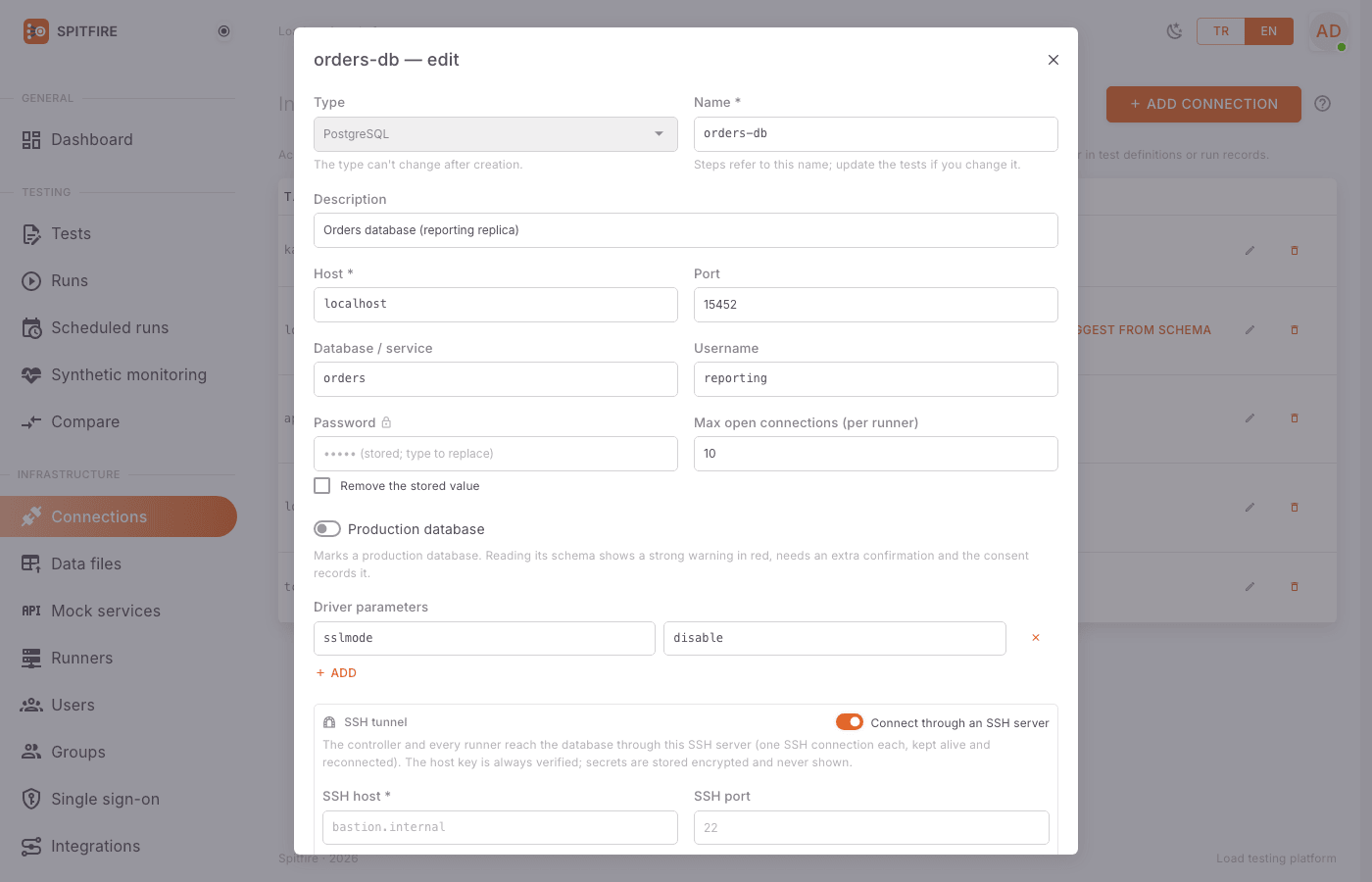 SSH tunnel section
On the Connections page edit the SQL connection (pencil icon) or create a new SQL connection.
In the form's SSH tunnel section switch on Connect through an SSH server.
SSH host: the bastion's address (e.g.
bastion.example.com). Required.SSH port: default 22.
SSH user: the user on the bastion. Required.
Authentication:
key(private key) orpassword.- For
key, paste the whole key into Private key (PEM) (OpenSSH or PEM format, starting with-----BEGIN OPENSSH PRIVATE KEY-----). If the key has a passphrase, enter Key passphrase. - For
password, enter SSH password. All three fields are secrets: encrypted withSPITFIRE_SECRET_KEYand never returned by the API.
- For
Click Fetch host key. Spitfire connects to the SSH server, reads the host key it presents and disconnects without logging in.
A warning box appears: Compare this fingerprint with the one on the SSH server. Trust it only if they match: with the key type and the
SHA256:…fingerprint below it.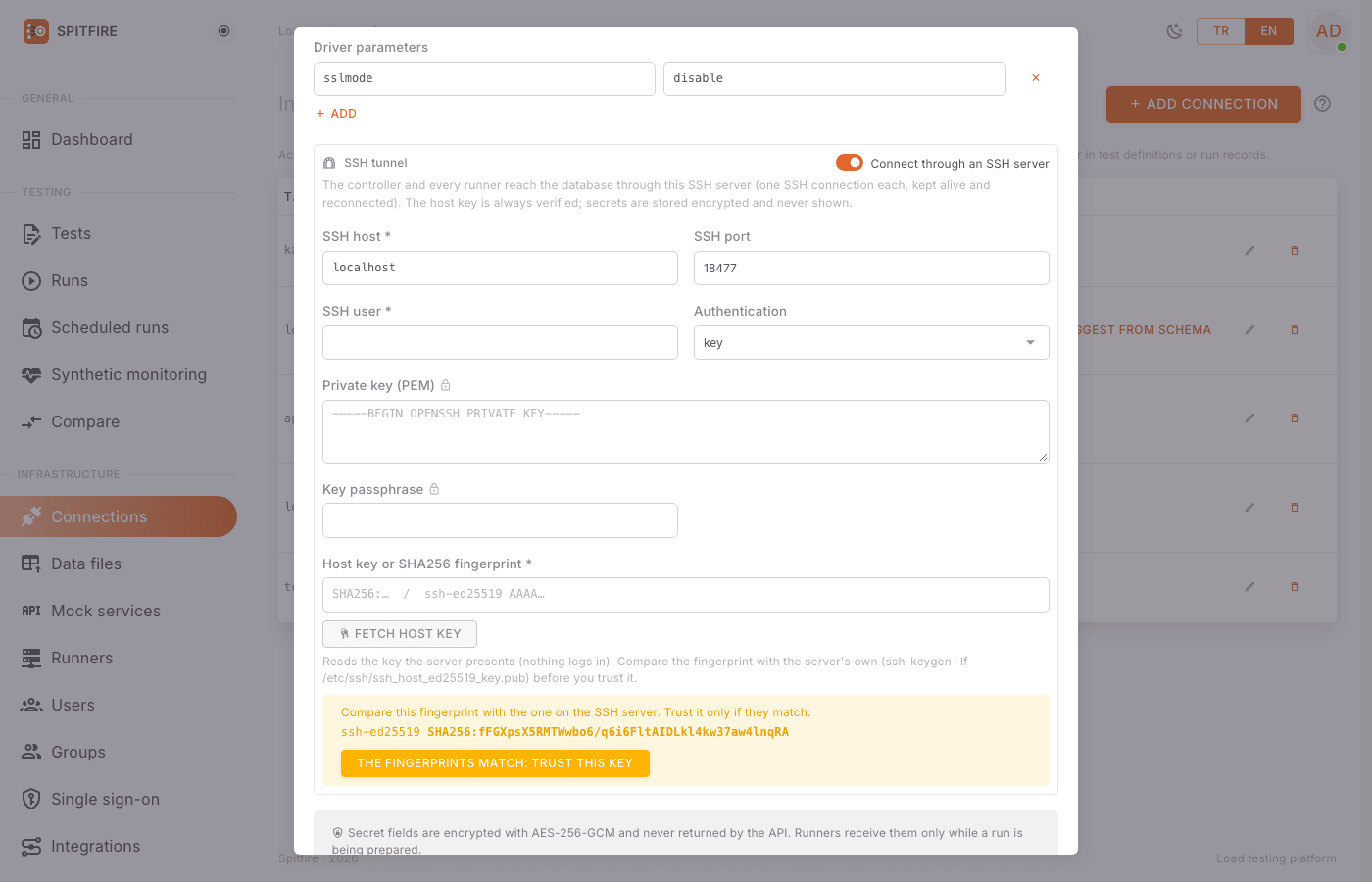 Host key fingerprint confirmation
Compare the fingerprint with the server's own. On the SSH server (or from its administrator) get the real fingerprint with:
ssh-keygen -lf /etc/ssh/ssh_host_ed25519_key.pubIf the key type differs (e.g.
ecdsa,rsa), use the matching.pubfile. Continue only if the two values are exactly the same.Click The fingerprints match: trust this key. The key is written into Host key or SHA256 fingerprint. If you already know the fingerprint, you can also type it there directly as
SHA256:…orssh-ed25519 AAAA….In Host, write the database's host name as the bastion sees it (e.g.
db.internalor10.0.3.15).Save, then Test on the list. The connection's row shows
user@bastion:22with a tunnel icon under the target.
Never trust a fingerprint without comparing it. Someone in between (a man-in-the-middle) could present their own key; all traffic, including your database password, would then go to them. Always verify the fingerprint with the bastion itself or its administrator.
Host key verification
- The host key is always verified; there is no way to turn verification off. With an empty host key field the save is refused: the SSH server's host key or its SHA256 fingerprint is required (fetch it and confirm).
- The connection stores either the full public key or the SHA256 fingerprint.
- If the server later presents a different key (the server was rebuilt, the key changed, or someone got in between), the connection is refused before anything is sent:
ssh: the server's host key does not match the confirmed one. If the key really changed, verify the new fingerprint and repeat steps 7–10.
Removing the tunnel
Edit the connection, switch off Connect through an SSH server and save. The SSH secrets (private key, passwords) are removed with the tunnel. Only installation admins can do this.
Logs
Tunnels write a log line when they open, drop and close (with the connection's name; no secret is ever written).
Common problems
Symptom: Fetch host key fails with connection refused or a timeout.
Cause: Wrong SSH host/port, or the controller cannot reach the bastion.
Fix: Check SSH host and SSH port; try nc -vz bastion 22 from the controller. For runs, the runners need to reach the bastion too.
Symptom: ssh: the server's host key does not match the confirmed one.
Cause: The key the server presents differs from the confirmed one.
Fix: First ask the server's administrator whether the key changed. If it did, verify the new fingerprint and trust it again; if it did not, something may be wrong on the network; do not continue.
Symptom: ssh: handshake failed: unable to authenticate.
Cause: Wrong SSH user, key or password; or the key's public part is not in authorized_keys on the bastion.
Fix: Check the key and the user; add the public key to ~/.ssh/authorized_keys of the user on the bastion.
Symptom: ssh: the private key is encrypted; enter its passphrase.
Cause: The key has a passphrase but Key passphrase is empty.
Fix: Enter Key passphrase and save.
Symptom: ssh: private key: … (the key could not be read).
Cause: The key was pasted incompletely or in the wrong format (missing header/footer lines).
Fix: Paste all of it, including the -----BEGIN …----- and -----END …----- lines.
Symptom: The tunnel opens but the database cannot be reached (ssh tunnel to db.internal:5432: …).
Cause: The name in Host does not resolve on the bastion, or the bastion cannot reach the database port; TCP forwarding may be disabled on the SSH server.
Fix: Try nc -vz db.internal 5432 on the bastion; make sure AllowTcpForwarding is enabled in sshd_config.
Symptom: The SSH tunnel section has no switch and only says Only an installation admin can set up or change the SSH tunnel. Cause: You are not an installation admin. Fix: Ask an installation admin to set up the tunnel.