Version: 0.21.0This documentation is for Spitfire 0.21.0.
Protocols and connections
A Spitfire test step talks one protocol: HTTP, WebSocket, SSE, gRPC, Kafka, MQTT, RabbitMQ (AMQP), Redis, SQL (PostgreSQL, MySQL / MariaDB, SQL Server, Oracle) or MongoDB. Most protocols other than HTTP need a connection: access details such as the address, username, password and TLS settings are not written into the test definition; they are stored once, encrypted, on the Connections page, and steps use a connection by its name.
This page covers connections in general: how to add one, how to test it, who can edit it, how secrets are stored and how steps refer to it. Each protocol has its own page that continues from here (see Related pages at the end).
What it does
- Keeps access details out of the test. The test definition only says
"connection": "orders-db". Secrets such as passwords, tokens and private keys never appear in the test JSON, run records, reports or logs. - One place to manage them. When the database password changes you update only the connection; every test that uses it picks up the new value on its next run.
- Limits who sees what. Only admins create and edit connections; the people who write tests don't need to know the database password.
When to use it
- Before you add a gRPC, Kafka, MQTT, RabbitMQ, Redis, SQL or MongoDB step. Steps of these protocols cannot be saved without a connection.
- For HTTP, WebSocket or SSE steps, only when you need a client certificate (mTLS) or a private CA. Create a connection of type Client certificate (mTLS) for that.
| Protocol (in the step) | Connection type needed | Required |
|---|---|---|
| HTTP, WebSocket, SSE | Client certificate (mTLS) | No, only for mTLS / a private CA |
| gRPC | gRPC | Yes |
| Kafka | Kafka | Yes |
| MQTT | MQTT | Yes |
| RabbitMQ (AMQP) | RabbitMQ (AMQP) | Yes |
| Redis | Redis | Yes |
| SQL | PostgreSQL, MySQL / MariaDB, SQL Server or Oracle | Yes |
| MongoDB | MongoDB | Yes |
A step can only use a connection whose type matches its protocol. If you pick a Kafka connection for a SQL step, saving fails with: connection kafka-local is a kafka connection; sql needs postgres/mysql/mssql/oracle.
Who can do what
| Action | User (user) |
Workspace admin | Installation admin |
|---|---|---|---|
| See the connection list (name, type, target, which secrets are stored) | Yes | Yes | Yes |
| Add, edit, delete connections | No | Yes | Yes |
| Try a connection with the Test button | No | Yes | Yes |
| Add or change an SSH tunnel on a SQL connection | No | No | Yes |
| Suggest from schema on a SQL connection | No | No | Yes |
Nobody is ever shown a secret's value; even admins only see that it is "stored". The SSH tunnel and schema suggestions also need a browser session; they don't work with an API token.
Adding a connection
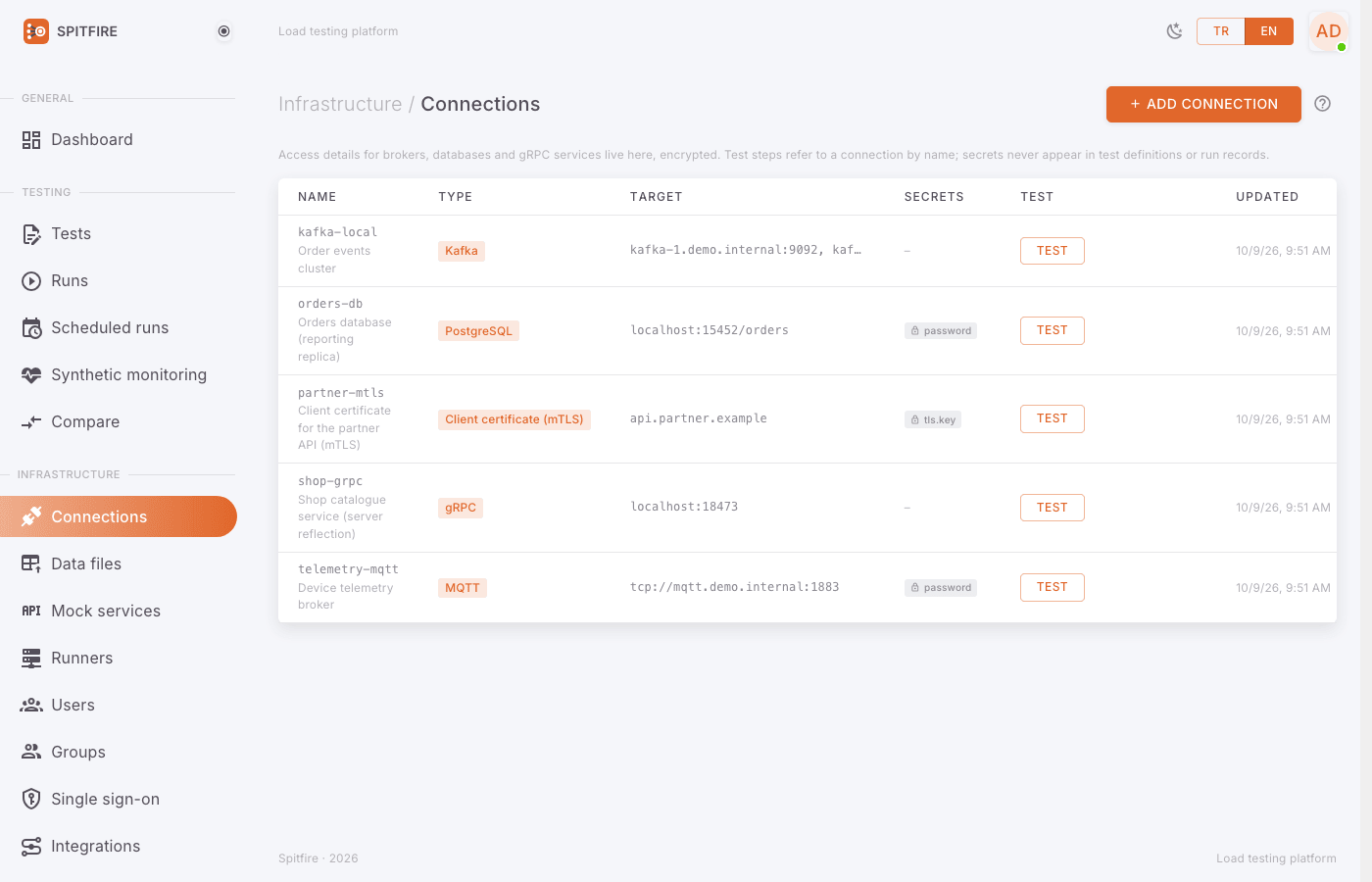 Connections page
- In the left menu open Infrastructure → Connections (Connections
In Spitfire: /connections). - Click Add connection at the top right. The New connection dialog opens.
- Pick the connection type in Type: gRPC, MQTT, RabbitMQ (AMQP), Kafka, Redis, PostgreSQL, MySQL / MariaDB, SQL Server, Oracle, MongoDB or Client certificate (mTLS).Warning
The type cannot be changed after the connection is created (The type can't change after creation.). If you picked the wrong one, delete the connection and create it again.
- Type a short, meaningful Name, e.g.
orders-db,kafka-local,payments-grpc. It must start with a letter or digit, may only contain letters, digits,_,.and-, and is at most 63 characters. Steps refer to the connection by this name. - Optionally add a Description (e.g. "Staging orders database, read-only user").
- Fill in the type's fields. Fields with an asterisk (
*) are required. Fields with a lock icon are secrets and are stored encrypted. Each type's fields are explained on its own page. - If the connection uses TLS, click the TLS heading at the bottom of the form to expand its settings (see TLS settings).
- Click Save. If a field is invalid, a red message appears under it and the dialog stays open; fix it and save again.
- Click Test on the new row to try the connection (see Testing a connection).
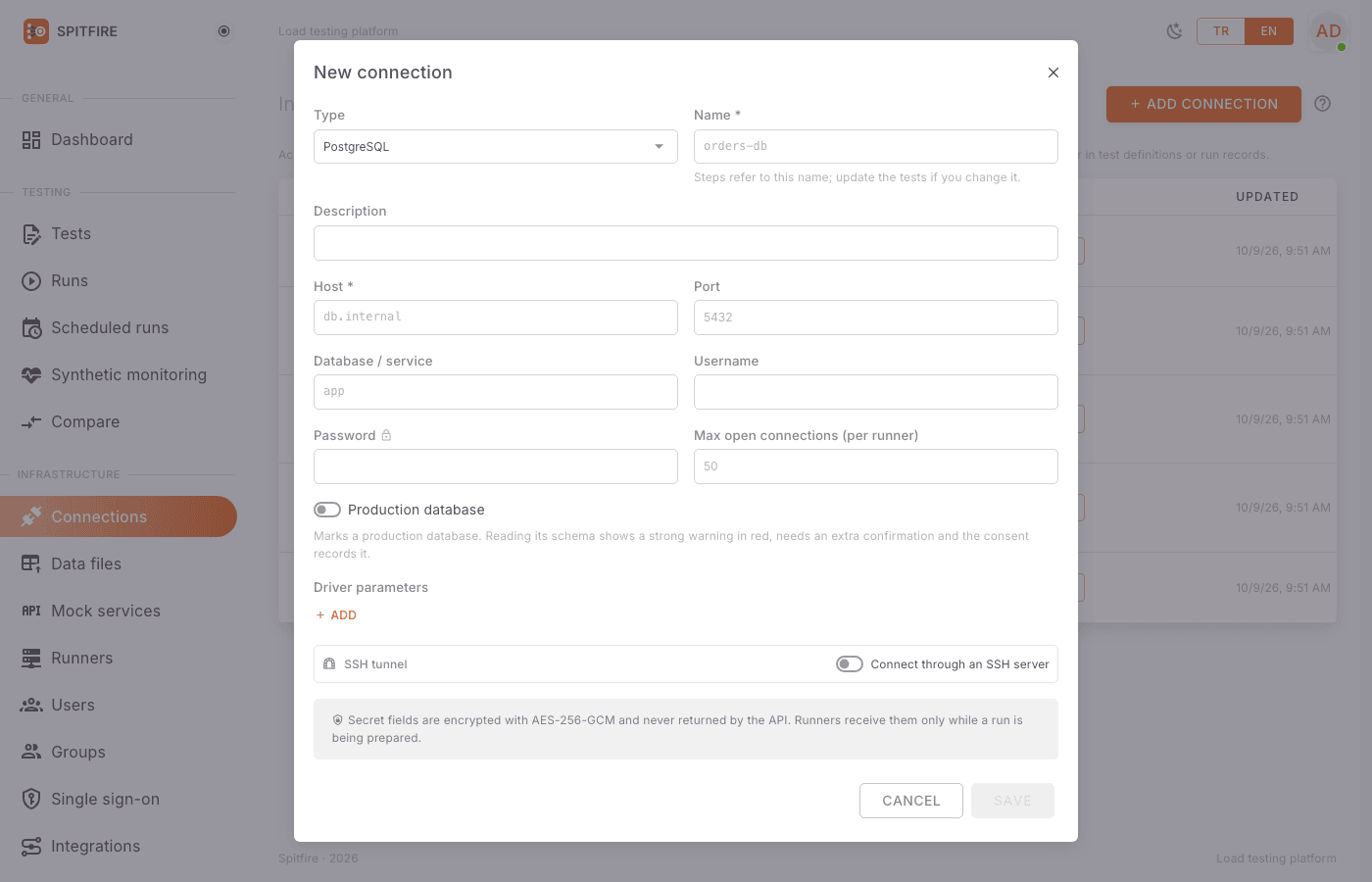 New connection dialog
Don't put the password inside the address. A user:password@ part in the RabbitMQ URL, the MongoDB URI or the MQTT broker addresses is rejected (no password in the address: put it in the Password field, which is stored encrypted). Use the separate username and password fields; the password field is encrypted, the address is visible to everyone.
How secrets are stored
- Fields with a lock icon (password, Bearer token, SASL password, TLS client key, SSH private key and passwords…) are encrypted with AES-256-GCM using the installation's
SPITFIRE_SECRET_KEY. The note at the bottom of the form says so: Secret fields are encrypted with AES-256-GCM and never returned by the API. Runners receive them only while a run is being prepared. - You cannot see a stored secret in the edit dialog; the field shows ••••• (stored; type to replace).
- To change it: type the new value and save.
- To keep it: leave the field empty; an empty field does not remove the stored value.
- To remove it: tick Remove the stored value under the field and save.
- The Secrets column of the list only shows which secrets are stored (field names), not their values.
- Secrets never enter the test definition. Even if you export a test as JSON, move it to another installation or share a run report, the password is not in it. When you move a test to another installation, create a connection with the same name there.
If SPITFIRE_SECRET_KEY is lost, stored secrets cannot be decrypted. When you back up the installation, back this key up somewhere safe as well.
Testing a connection
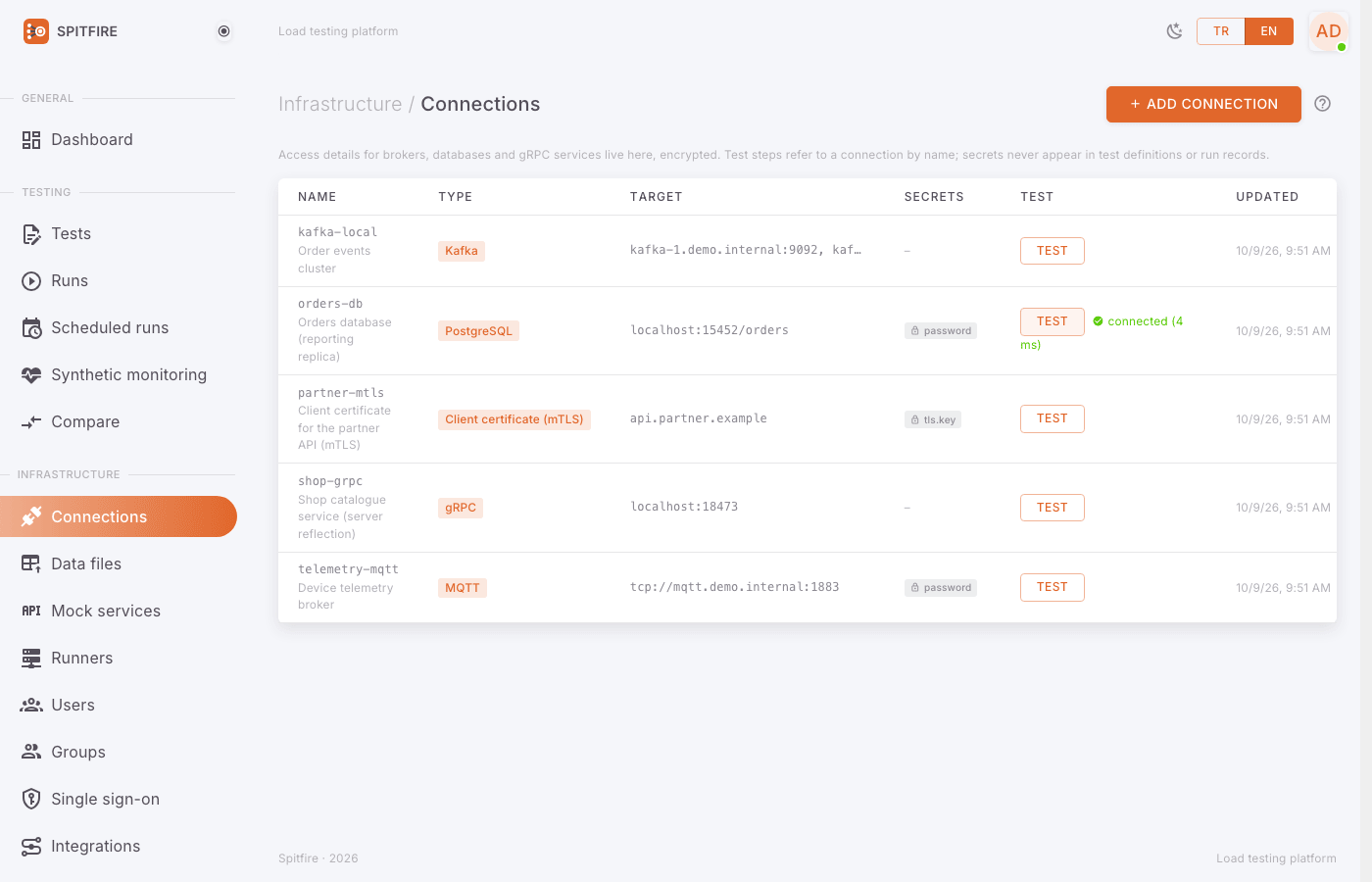 Connection test result
- Find the connection's row on the Connections list.
- Click Test in the Test column. The button briefly reads Testing….
- Read the result:
- Green connected (… ms): the connection opened and authentication passed; the time is how long connecting took.
- Red failed: …: the first 80 characters of the error are shown next to it. Hover over the message to see all of it.
Test tries the connection from the controller (for at most 15 seconds). The load, however, is generated by runners. If your runners sit on another network, in another location or behind different firewall rules, a green test does not mean the runners can reach the target too. The editor's Try it button also sends its single iteration from the controller. If a run shows connection refused or timeouts, check access from the runner machine as well.
How steps use a connection
When you pick a step's Protocol in the test editor, the Connection list shows only the connections that fit that protocol (Pick a connection…). If there is none, it says No connection for this protocol. and the Create a connection link takes you to the Connections page.
In JSON, a step names its connection in the connection field:
{"id": "order", "name": "Get order", "protocol": "sql", "connection": "orders-db",
 "sql": {"query": "SELECT id, status, total FROM orders WHERE id = $1", "params": ["{{$randInt 1 100000}}"]}}
So:
- If you rename a connection, tests can no longer find it. Spitfire prevents that: renaming is refused while a test uses the connection (Tests use this connection by its name; change them first, then rename it.). First point the tests' steps to the new name (or another connection), then rename.
- When a test is saved and a named connection does not exist, the field shows no connection named orders-db.
- When a run starts, the controller resolves the connections the test's steps name and sends them, with their secrets, only to the runners taking part in that run.
Switching connections per environment
You don't need to copy a test to run it against staging and production. In the test editor's Environments tab, each environment can map the connection a step uses to another connection of the same type, e.g. orders-db → orders-db-staging. The environment is chosen when you start a run or a schedule; the run records which one it used.
 Mapping connections in the Environments tab
A mapping to a connection of a different type (e.g. MySQL instead of PostgreSQL) is refused: query syntax and placeholders differ, so the test would not work on that database.
Editing and deleting a connection
- Click the pencil icon (Edit) at the right of the row. The dialog title reads like orders-db — edit.
- Update the fields you want to change. Leave secret fields empty if you don't change them.
- Click Save. The change applies from the next run of the tests that use the connection; a run already in progress is not affected.
To delete, click the bin icon and confirm in the Delete connection dialog. Deleting is refused while a test uses the connection (This connection is used by tests; remove it from them first.).
 Delete connection confirmation
TLS settings
The forms of gRPC, MQTT, RabbitMQ, Kafka, Redis and MongoDB connections have a collapsed TLS section. Click it to show these fields:
| Field | What it does |
|---|---|
| Use TLS | Connects with TLS. Tick it when the server expects TLS. |
| Skip certificate verification | Does not verify the server certificate. Only for self-signed test environments; never tick it for production. |
| Server name (SNI) | The name expected in the certificate, when it differs from the host in the address. |
| CA certificate | The private CA that signed the server certificate (PEM, -----BEGIN CERTIFICATE-----). |
| Client certificate | The client's certificate for servers that require mTLS (PEM). |
| Client key | The certificate's private key (PEM). A secret, stored encrypted. |
 TLS section of a Kafka connection
SQL connections have no TLS section; the driver's own parameters are used instead: in Driver parameters add for example sslmode = require for PostgreSQL or encrypt = true for SQL Server.
HTTP, WebSocket and SSE steps have a type of their own: Client certificate (mTLS). It holds the certificate, the key and the CA to trust; the step picks it in its Client certificate (mTLS) field. Details: HTTP, WebSocket and SSE.
Common problems
Symptom: Test is red with connection refused.
Cause: Wrong address or port, the service is not running, or the controller cannot reach that port.
Fix: Check host and port (e.g. PostgreSQL 5432, MySQL 3306, SQL Server 1433, Oracle 1521, Kafka 9092, MQTT 1883/8883, RabbitMQ 5672/5671, Redis 6379, MongoDB 27017). Try nc -vz host port from the controller. If the database is only reachable through a bastion, use an SSH tunnel.
Symptom: i/o timeout, context deadline exceeded, or a failure after 15 seconds.
Cause: Packets are dropped by a firewall, or the address resolves but does not answer.
Fix: Allow the controller's IP (and the runners' IPs, for runs) in the firewall / security group rules.
Symptom: no such host.
Cause: The host name does not resolve in the controller's DNS.
Fix: Use the fully qualified domain name or an IP. If runners use a different DNS, make sure they can resolve it too.
Symptom: authentication failed, password authentication failed, SASL authentication failed, ACCESS_REFUSED, not authorized.
Cause: Wrong username, password or mechanism (e.g. Kafka SASL); the user has no rights on that database / vhost.
Fix: Type the password again and save (the old value is not shown; leaving it empty keeps it). For Kafka, the SASL mechanism must match the broker's. For MongoDB, Auth source must be the right database (often admin).
Symptom: x509: certificate signed by unknown authority or certificate is valid for …, not ….
Cause: The server is signed by a private CA, or the name in the certificate does not match the address.
Fix: Paste the CA certificate into the TLS section; fill Server name (SNI) if the name differs. Only in a test environment may you temporarily tick Skip certificate verification.
Symptom: tls: first record does not look like a TLS handshake, or the connection closes immediately.
Cause: TLS is on but the server expects plain TCP (or the other way round).
Fix: Set Use TLS to match the server; make sure you use the right port (TLS ports are usually different).
Symptom: Saving shows no password in the address: put it in the Password field, which is stored encrypted.
Cause: The password is inside the URL.
Fix: Remove the user:password@ part from the URL; use the Username and Password fields.
Symptom: Renaming fails: Tests use this connection by its name… Cause: Tests refer to the connection by name. Fix: First change the connection in the tests' steps, then rename. To do the same per environment, use the mapping in the Environments tab.
Symptom: No Add connection button and no Test column.
Cause: Your account has the user role; only admins manage connections.
Fix: Ask your workspace admin to add the connection or to give you the admin role.
Symptom: The test is green, but in the run every request gets connection refused / timeouts.
Cause: Test tries from the controller; the runners are on another network.
Fix: Check access from the runner machine to the target; allow the runners' outgoing IPs in the firewall.