Version: 0.21.0This documentation is for Spitfire 0.21.0.
Importing
What it does
Start from what you already have instead of writing a test from scratch. Spitfire turns these sources into a Spitfire test:
| Source | From | Result |
|---|---|---|
k6 script (.js, .mjs, .ts) |
Tests → Open file | A test opened in the editor + a conversion report |
JMeter plan (.jmx) |
Tests → Open file | A test opened in the editor + a conversion report |
Spitfire test (.json) |
Tests → Open file | A test opened in the editor |
| Several k6 / JMeter / JSON files | Tests → Open file (multiple selection) | The Bulk import page |
| OpenAPI 3.x, Swagger 2.0, Postman collection | Tests → Import API / HAR | A test from the operations you pick |
| HAR (browser recording) | Tests → Import API / HAR | A test that replays the user flow |
| Access log or trace export | Tests → From real traffic | A test that replays the endpoint mix and arrival rate |
No file is ever run: scripts and plans are only read. Every imported test is reviewed in the editor before you save it.
 Import buttons on the Tests page
The import buttons are shown to admins only; accounts with the user role cannot create or edit tests.
When to use it
- When you move from k6 or JMeter to Spitfire and want to bring your existing test suite.
- When your API has an OpenAPI document or a Postman collection and you want a starting test for each endpoint quickly.
- When you want to record a real user flow (login, search, add to cart…) in the browser and repeat it under load.
- When you want to reproduce production's real traffic profile (which endpoint how often, how busy at which hour).
k6 and JMeter
Step by step
- On the Tests page click Open file.
- Pick a
.js/.mjs/.ts(k6) or.jmx(JMeter) file. If you select several files, the Bulk import page opens. - The controller converts the file and the editor opens it as a New test. A box titled Converted from file.js (k6) and the summary N parts not converted, M to check. appear at the top.
- Click Show the report (N). Every line has a level:
- note: converted, with a note on how;
- check: converted, but not exactly; review it;
- not converted: no equivalent, add it by hand. Lines from k6 scripts carry line N. Report messages are in English.
- Review the steps, thresholds and variables, then save. For a checklist see Review before saving.
- Save.
What converts from k6
options: executors (load models),vus/duration,stages,thresholdsand a few HTTP options. Withoutoptions, one VU and one iteration, as in k6.http.get/post/put/patch/del/head/options/request: requests with headers and bodies become steps.check()calls on a response become checks.sleep()becomes think time.- Values taken from a response (
res.json(...),res.headers[...]) become extractions and are used in later requests. __ENVvariables become test variables with their defaults;__VU/__ITERmap to their equivalents.- Values returned by
setup(); requests insidesetup()become steps that run once per VU (the report marks this as "check"). - k6 metric names are mapped to Spitfire's (
http_req_duration→req_duration,http_req_failed→req_failed,http_reqs→reqs…). The threshold syntax and the CI exit codes are the same as k6's.
Not converted (listed in the report with the line): loops, if conditions, functions that take arguments, custom metrics (k6/metrics), data files (SharedArray, papaparse), WebSocket/gRPC modules, http.batch, teardown(), the externally-controlled executor.
What converts from JMeter
- Thread Group → scenario. A group with a duration (scheduler) and a ramp-up becomes
ramping-vus; with a duration and no ramp-upconstant-vus; with a loop countper-vu-iterations. A group that loops forever with no duration becomes a 10-minuteconstant-vus, with a warning in the report. - HTTP Request samplers → steps. HTTP Request Defaults and the HTTP Header Manager are applied.
- Response Assertion, Duration Assertion, JSON Assertion → checks.
- JSON Extractor, Regular Expression Extractor, XPath Extractor → extractions.
- Constant, Uniform Random, Gaussian Random Timer → think time.
- User Defined Variables and
${__P(name,default)}→ test variables (with the default).__Random,__UUID,__time,__threadNummap to their equivalents.
Not converted: logic controllers (If, While, Loop, ForEach, Switch, Random, Once Only, Throughput… — the requests inside are left out too), CSV Data Set (the report names the file and variables: upload the CSV on the Data files In Spitfire: /data-files page and bind it in the test), setUp/tearDown thread groups, non-HTTP samplers and plugins. Listeners are ignored, since Spitfire collects the results itself.
JMeter plans have no thresholds. Add thresholds in the editor's Thresholds tab so the test passes or fails (e.g. req_duration p(95)<500, req_failed rate<0.01).
POST, PUT, PATCH and DELETE requests from both k6 and JMeter come with This request changes data on the target ticked, so every run asks for confirmation. Untick it on POSTs that change no data, such as a login or a search.
Bulk import
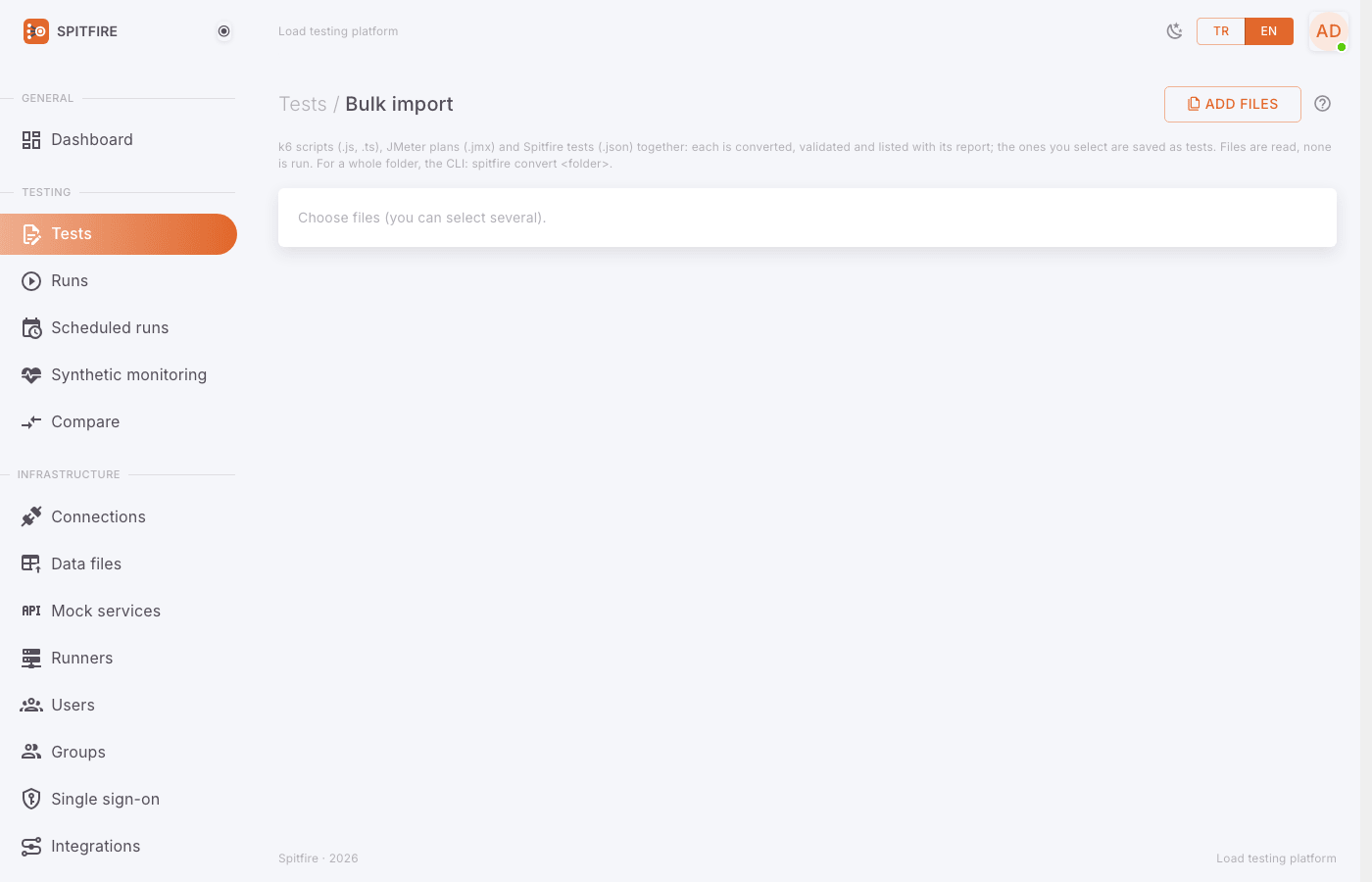 Bulk import page
To move a whole test suite at once:
- Select several files in Tests → Open file, or click Add files on the Bulk import page. k6 (
.js,.ts), JMeter (.jmx) and Spitfire (.json) files may be mixed. - Each file is converted, validated and listed on a row: File, Test name (editable), Steps, Report, Status.
- Status values: converting, ready, to fix (it has validation errors), nothing to convert, not converted, saving, saved, not saved.
- The summary line gives the counts: N files · X ready · Y to fix · ….
- On to fix rows, use Fix in the editor to open the test in the editor and fix the error.
- Tick the rows you want to save (the header checkbox Select all ready ones selects them all) and click Save selected (N). Each test is saved with the description Converted from file (k6).
From the command line: for a whole folder,
spitfire convert <folder> -o tests/ -r report.csvwrites one test file per script and every report line to a CSV.
Test from an API document
 Importing from an API document
- Click Tests → Import API / HAR. The Create a test from an API document or a browser recording page opens.
- Pick the source:
- From URL: type the document's URL (e.g.
https://api.example.com/openapi.json). The controller downloads the document, so the URL must be reachable from the controller. - From file: choose the file.
- From URL: type the document's URL (e.g.
- Click Read. Supported: OpenAPI 3.x, Swagger 2.0, Postman collection v2.0/v2.1 (JSON or YAML, up to 10 MB) and HAR (up to 50 MB).
- The document's title, format and N operations appear.
- Methods to take: only GET is selected by default (Only read requests are selected: nothing changes on the target.). If you add POST, PUT/PATCH, DELETE, a red warning appears: these requests are repeated on every iteration of the load test.
- Type the Test name.
- Base URL: one of the document's servers is suggested; type your test environment's address. It becomes the
{{base}}variable in the test. - A Postman collection's variables are carried into the test (The collection's N variables are carried into the test); Postman's dynamic variables are mapped to their equivalents (
{{$guid}}→{{$uuid}}), ones without an equivalent become a fixed sample value. - Filter operations with Search path, summary or tag; tick the ones you want in the tag groups (Select shown, Clear shown). The summary reads N selected · M change data.
- Click Create a test with N steps.
- If the selection contains requests that change data, the Requests that change data dialog opens:
- confirm each group separately (POST — N requests create new records on the target, PUT / PATCH — …, DELETE — N requests DELETE records on the target);
- type the host name shown under Type the target host to confirm: exactly;
- click I confirm, create the test. The confirmation is written to the audit log with the user, time, IP, the document's SHA-256 and the list of operations.
- The editor opens; review the test and save.
The generated test: one step per selected operation (in document order), 1 VU for 1 minute, and on every step a Status check for the success code the document gives. Non-GET steps come with This request changes data on the target ticked, and every run of the test asks again. Authentication defined in the document becomes a header with an empty variable you must fill in: Bearer → Authorization: Bearer {{token}}, Basic → Authorization: Basic {{basicAuth}}, API key → {{apiKey}} in a header or the query. Path parameters (/pets/{petId}, Postman :id) become variables.
Code documentation such as JSDoc, Javadoc or Sphinx does not describe HTTP requests and is not supported. Most frameworks that use these tools also serve an OpenAPI document (springdoc, swagger-jsdoc, FastAPI…).
HAR browser recording
In the browser open the developer tools → Network tab → go through the flow (login, search, add to cart…) like a real user → Save all as HAR.
Choose the HAR file with Tests → Import API / HAR → From file, then Read.
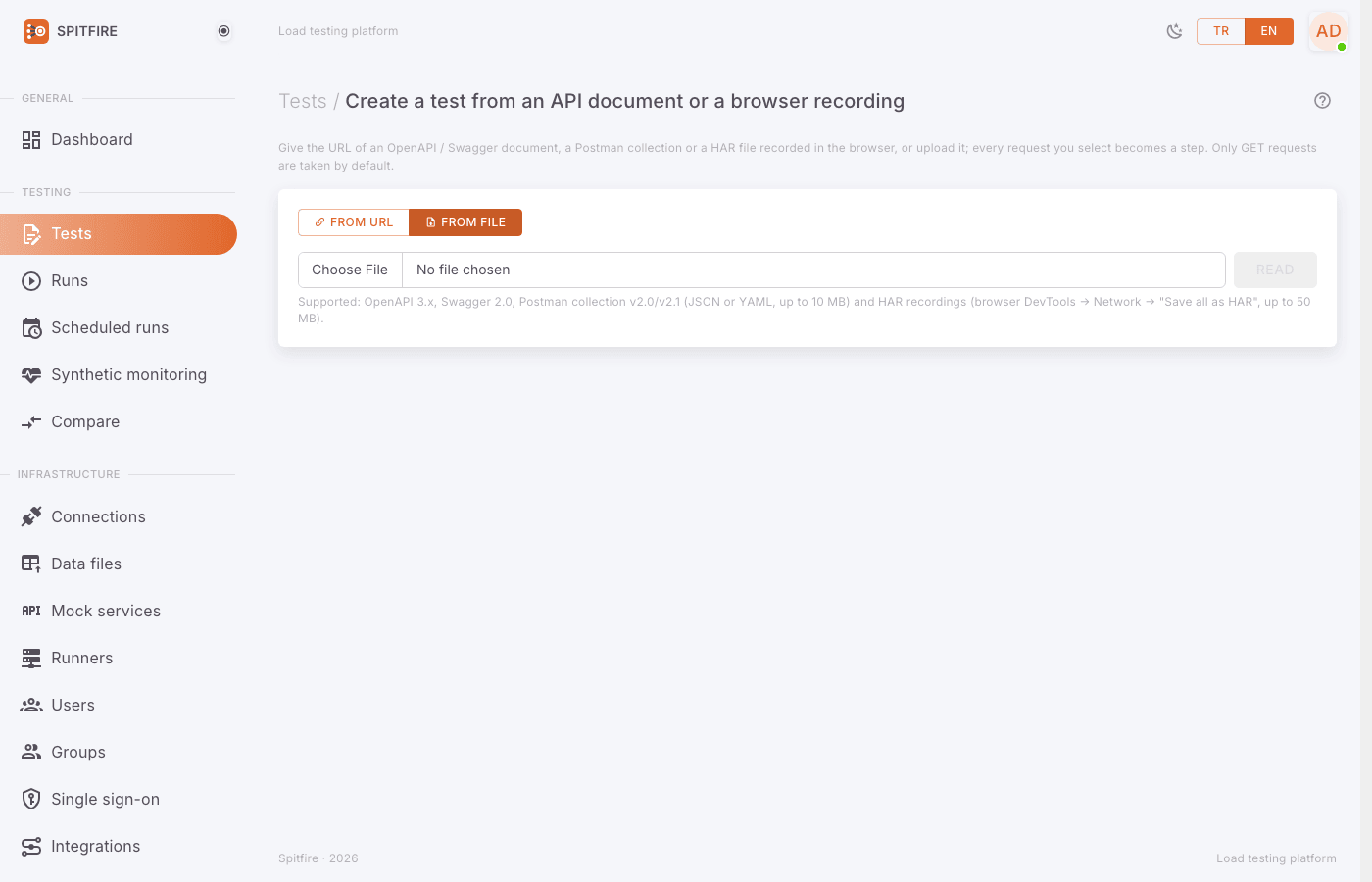 Importing from a file
The page says what was left out of the recording: of N requests, X static files and Y CORS preflights were left out.
The remaining requests are listed in recording order; steps 5–12 above apply as they are.
HAR-specific conversions:
- Correlation: values a response returned and a later request sent back (tokens, order ids) are not replayed as constants; they are extracted into variables. For example the
{"token": "eyJ…"}a login returned becomesAuthorization: Bearer {{token}}on every later call. - Think time: the user's pauses between requests become think time.
- Cookies are dropped from the recording; each VU keeps its own cookies. A recorded session cookie would turn every VU into the same user.
- A credential that no response in the recording produced (an expired token) is not written into the test; an empty
{{authToken}}variable takes its place. - Headers the browser adds itself (
sec-*, cache validators, user agent…) are dropped. - Every origin becomes a variable: the busiest
{{base}}, the others{{base2}}… so the same recording can be pointed at a staging host.
HAR files can contain passwords, tokens and personal data. Be careful with the file before sharing it; Spitfire does not write the recording itself into the test, only the derived requests.
Test from real traffic
 Create a test from real traffic
- Click Tests → From real traffic.
- Choose the Log or trace file (up to 512 MB). Format: Detect the format, or pick one: nginx (combined), JSON log lines, AWS ALB access log, AWS Classic ELB access log (
.gztoo), CSV (headermethod,path,status,latency,timestamp, latency in ms), OTLP JSON (traces), Jaeger JSON (traces). - Read. The summary reads N requests out of M records; unreadable records and secret values removed while reading are counted.
- Time window: choose From (your local time) and To, or Busiest hour / Whole file.
- Look at the Endpoint mix table: paths are normalized (
/orders/123→/orders/:id; UUIDs, hashes, dates, opaque tokens and path segments with 20 or more distinct values become parameters). Each row shows Requests, Share, Avg/s and In the test. - In Generated test:
- Test name,
- Base URL: suggested from the server in the log; type your test environment (
{{base}}), - Scale factor (0.01–100; 2 = twice the observed traffic),
- Endpoints in the test (default 20, at most 50; the rest is left out).
- The What the test will do summary gives the coverage, the stage length and the peak rate. Click Create the test. Endpoints that change data are confirmed as in the API document import.
Each endpoint becomes a ramping-arrival-rate scenario whose stages follow its own observed rate; together the scenarios replay the mix and the curve. Logs have no request bodies or headers: add them (and credentials) in the editor.
Privacy: the file is read line by line and not stored. Only derived values stay in the controller's memory for at most an hour (time, method, path template, status, latency) and are dropped when the test is created. Client addresses, users, user agents and headers are never read; query values and path segments that look like secrets (tokens, passwords, session ids, e-mail addresses) are removed while reading.
Review before saving
Before saving any imported test, check:
- Target address: do
{{base}}and the other URLs point to your test environment? Don't send load to production by accident. - Empty variables: in the General & variables tab fill empty variables such as
token,basicAuth,apiKey,authToken, or extract them from a login step. - Steps that change data: do the steps with This request changes data on the target really change data? Untick the ones that don't.
- Load model: do the VUs, duration and stages in Scenarios & steps fit your goal? A test from an API document is only 1 VU for 1 minute.
- Thresholds: JMeter and document imports have none; add them.
- Data files: for scripts that used CSV Data Set / SharedArray, upload the CSV on the Data files
In Spitfire: /data-filespage and bind it. - "Not converted" report lines: read each one; add the step by hand if needed.
- Send one iteration with Try it and check the responses, then Save.
Common problems
Symptom: file.json is not a Spitfire test definition (a JSON file with "scenarios"). Cause: The JSON you picked is not a Spitfire test (e.g. an OpenAPI or Postman file). Fix: Open OpenAPI/Postman/HAR files with Import API / HAR.
Symptom: After conversion the test is empty, or no thread group with an HTTP request could be converted. Cause: The requests sit inside a logic controller (e.g. Loop, If) or, in k6, inside a loop. Fix: Read the report; add the requests by hand in the editor. In Spitfire an iteration runs the steps once; use the load model for repetition.
Symptom: A row on Bulk import is to fix. Cause: The converted test failed validation (e.g. an undefined variable, a URL that is not absolute). Fix: Open it with Fix in the editor and fix the errors shown under the fields.
Symptom: Reading From URL fails. Cause: The URL is not reachable from the controller, or it requires authentication. Fix: Download the file and upload it with From file.
Symptom: The document is no longer loaded; read it again. Cause: A document that was read is kept in the controller's memory for at most an hour. Fix: Click Read again.
Symptom: The confirmation dialog says The target host you typed does not match the host the test writes to. Cause: The host you typed differs from the host the test writes to. Fix: Type exactly the name shown next to Type the target host to confirm: (comma-separated when there are several).
Symptom: A test from HAR gets 401.
Cause: The recorded token was not written into the test ({{authToken}} is empty), or the login request is not in the recording.
Fix: Include the login in the recording, or fill the authToken variable.
Symptom: Requests of a real-traffic test get 404.
Cause: Base URL points to the production server from the log, or a path parameter's sample value does not exist in the test environment.
Fix: Set Base URL to your test environment; fill path variables (e.g. {{orderId}}) with valid values or from a data file.
Related pages
- Protocols and connections
- HTTP, WebSocket and SSE
- SQL — importing a
.sqlfile andpg_stat_statements