Version: 0.21.0This documentation is for Spitfire 0.21.0.
Troubleshooting, updates and backups
When something goes wrong, follow this page from top to bottom. First you find out what the problem is (error code, system events, logs), then the fix in the common problems tables. If that does not solve it, the end of the page says what to send to support.
The first 5 steps when something is wrong
- If the screen shows an Error code, copy it (see below). It is the most valuable detail in any conversation with support.
- If you are an installation admin, open the System events page and read the warnings and errors from the same time.
- If the problem is about a runner, check its state on the Runners page.
- Look for the symptom in the common problems tables below.
- If it is still not solved, take a bundle with Download support bundle and e-mail it to support.
Error codes and request ids
When a server error (5xx) happens in the UI, the message shows an Error code with a copy button.
The code is the request's X-Request-ID, and it also appears:
- on every line of the controller log for that request, as
request_id, - in the Request id column of its event on the System events page.
So one code lets you follow what happened to that request end to end.
Step by step:
- Press the copy button next to the Error code in the error message.
- On the System events page paste it into the search box (message or request id) and press Filter.
- Open the event's row: the message, the source and, if there is one, the Stack trace show.
- To search the log:
grep <error code> controller.log(where the log is: below). - Always include this code when you write to support.
Users cannot see the System events page (installation admins only). If you are a user, pass the error code to your admin.
System events
System events (installation admins, Infrastructure → System events in the left menu) lists what the controller noticed: panics (recovered, with stack traces), server errors (5xx), runners connecting and dropping, failed runs, license, the update check, the database, SSO/LDAP and notification channel errors. Events are kept for 30 days, at most 20,000.
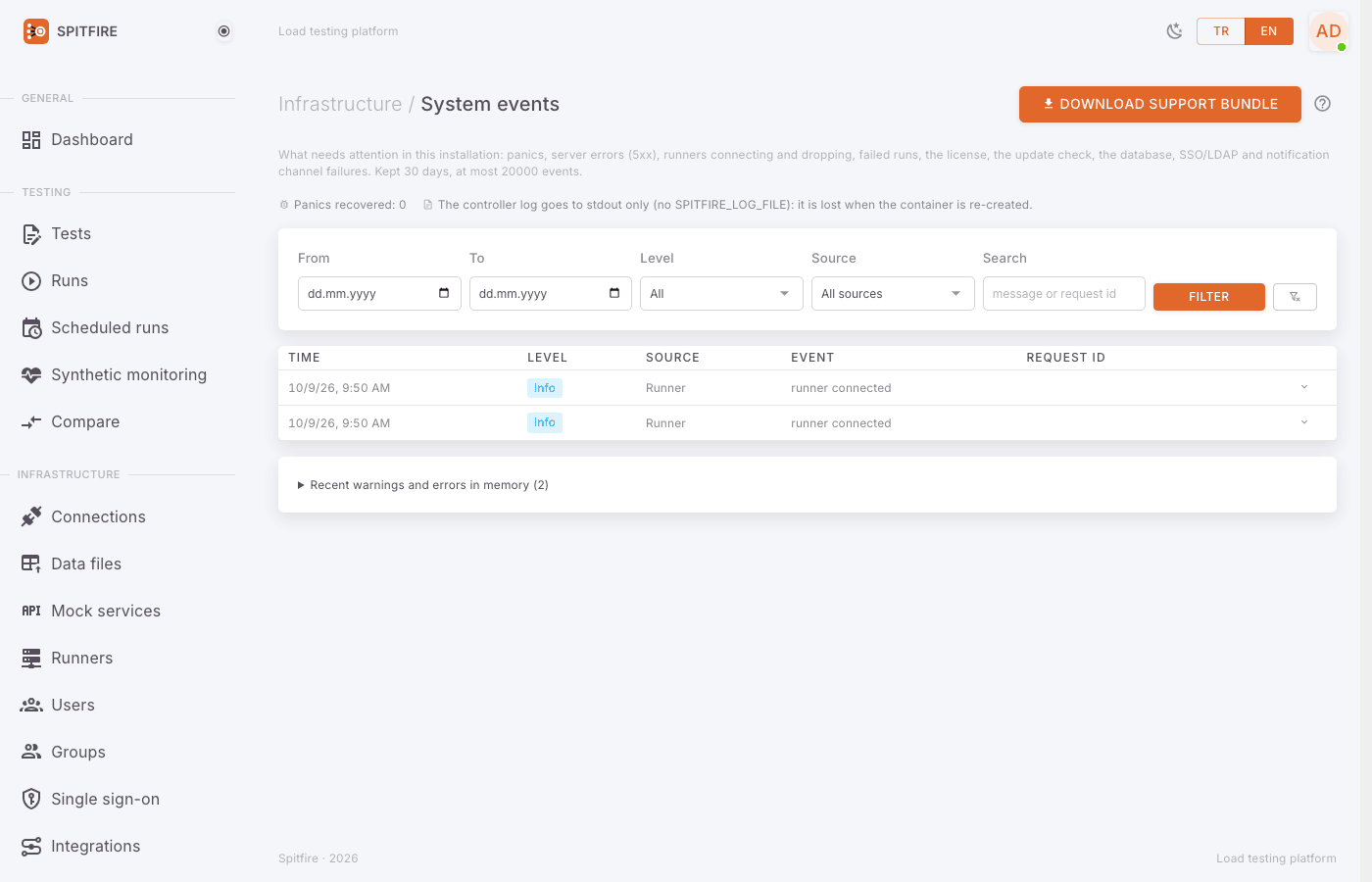 System events page
The top of the page:
- Panics recovered: N — the panics the controller caught in its own code. If it is above zero, always send the support bundle.
- "The controller log is also written to the data volume (rotated, 20 MiB × 5)." or "The controller log goes to stdout only (no SPITFIRE_LOG_FILE): it is lost when the container is re-created." — whether the log survives.
- "N events could not be stored because the database fell behind." — shows when the database is overloaded.
Filtering, step by step:
- Narrow From and To to the hours of the problem.
- Level: All, Warnings and errors or Errors only.
- Source: Panic, API (5xx), Runner, Run, License, Update check, Database, SSO / LDAP, Notification channels, Integrations, Controller, Scheduler, Synthetic monitoring, Mobile push, or All sources.
- Search: part of a message or a request id.
- Press Filter; Clear filters resets everything.
Each row shows Time, Level (info, warning, error), Source, Event and Request id. If the same event repeated within a minute, the count shows next to it. Details and the Stack trace show when you open the row.
At the bottom, Recent warnings and errors in memory shows the latest warning and error lines the controller logged since it started, newest first, with secrets removed. They reset when the controller restarts, so look at them before restarting.
Support bundle
The support bundle gathers what is needed to understand the problem into one zip. Spitfire never sends this bundle anywhere on its own: you download it, look inside if you like, and e-mail it to support yourself.
From the UI
- On the System events page press Download support bundle at the top right.
- The dialog shows each File and its Size (the zip is usually much smaller, being compressed).
- Read what is left out.
- Press Download.
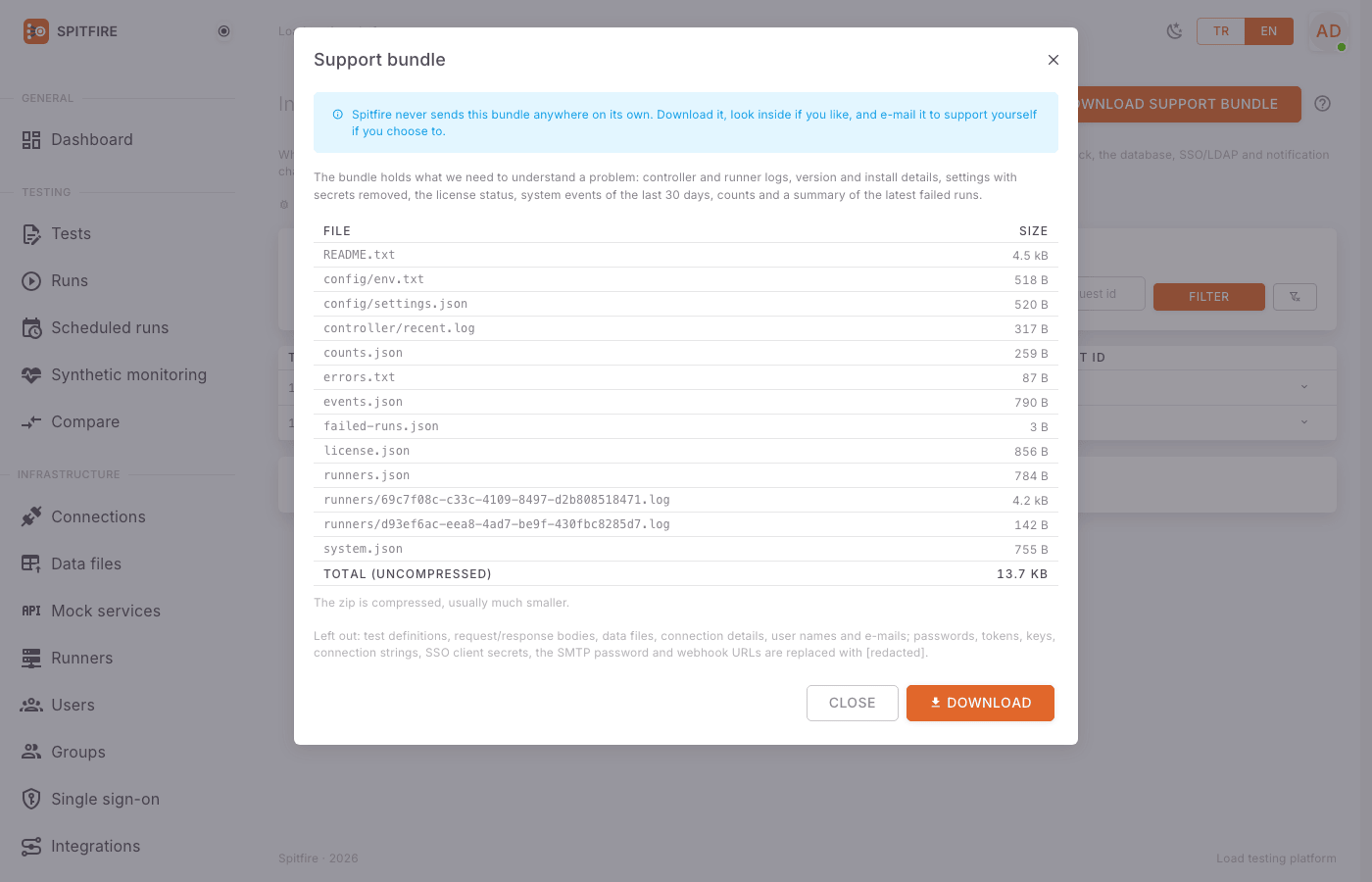 Support bundle dialog
When the UI does not open (command line)
If the controller keeps restarting, or nobody can sign in, in the install folder (~/spitfire by
default):
./install.sh --support-bundle                 # Docker (the install in this folder)
./install.sh kubernetes --support-bundle      # Kubernetes (--namespace / --context)
On Windows (Docker Desktop), in PowerShell:
.\install.ps1 -SupportBundleThe installers collect the container logs (docker compose logs / kubectl logs, also the previous
container's after a crash), the docker compose ps / kubectl get pods output and the settings with
secrets removed, and hand them to the controller, which adds them to the same zip under cli/. If the
controller cannot, the zip holds only what the script collected. The script prints where the file is;
the file stays on that machine.
What is in it
| File | Content |
|---|---|
README.txt |
what the bundle is |
system.json |
version and build, install kind, OS/architecture, Go version, uptime, database and migration version |
config/env.txt, config/settings.json |
SPITFIRE_ variables; retention, logging, update check, whether SSO and SMTP are set |
license.json |
state, plan, issuer, expiry, limits, features, key id |
events.json |
system events of the last 30 days |
counts.json |
numbers of tests, runs, runners, users |
failed-runs.json |
the last 20 failed runs: id, test id, time, error, runners |
runners.json |
the runner list |
controller/controller.log, controller/recent.log |
the last ~20 MiB of the controller log and the latest lines in memory |
runners/<id>.log |
each connected runner's recent log |
cli/ |
what the installer collected (command line only) |
Left out: test definitions, request/response bodies, data files, connection details, user names and
e-mail addresses, the license key and its signature. Any setting not on the allowlist of harmless
settings becomes [redacted]. In the logs, secret values and anything that looks like a credential (a
password in a URL, bearer and Spitfire tokens, password=, client_secret=, chat webhook URLs) become
[redacted], and e-mail addresses [e-mail].
Logs
Where
| Install | Controller log | Runner log |
|---|---|---|
| Docker | docker compose -p spitfire -f deploy/docker/docker-compose.yml logs controller (in the install folder) |
the same command with runner |
| Kubernetes | kubectl -n spitfire logs deploy/spitfire-controller |
kubectl -n spitfire logs deploy/spitfire-runner |
| Remote runner (Docker) | — | on the runner server find the container with docker ps, then docker logs <container> |
| Runner (systemd, no Docker) | — | journalctl -u 'spitfire-runner@*' |
| Runner (Windows service) | — | %ProgramData%\Spitfire\logs |
The controller also writes its log to a file on the data volume, which survives re-creating the
container (Docker: the logs volume; Kubernetes: an emptyDir that survives container restarts but
goes with the pod):
| Variable | Default | Meaning |
|---|---|---|
SPITFIRE_LOG_FILE |
/var/lib/spitfire/logs/controller.log |
the log file; off turns it off |
SPITFIRE_LOG_MAX_SIZE_MB |
20 |
the file rotates at this size |
SPITFIRE_LOG_MAX_FILES |
5 |
files kept, the current one included |
SPITFIRE_LOG_LEVEL |
info |
debug, info or warn |
SPITFIRE_LOG_FORMAT |
text |
text or json (for log collectors) |
To follow it live (Docker):
cd ~/spitfire
docker compose -p spitfire -f deploy/docker/docker-compose.yml logs -f --tail 200 controllerHow to read it
In the default text format each line is key=value pairs:
time=2026-10-08T09:41:12.318+03:00 level=ERROR msg="…" request_id=4f1c…level:INFO,WARN,ERROR. Look atERRORlines first.msg: what happened.request_id: the same as the Error code in the UI; to find all of that request's lines:docker compose -p spitfire -f deploy/docker/docker-compose.yml logs controller | grep 4f1c
For more detail set SPITFIRE_LOG_LEVEL=debug on the controller and restart it; set it back to info
once the problem is solved.
Common problems
Runner offline
Runner states on the Runners page: Idle, Running, Draining, Offline.
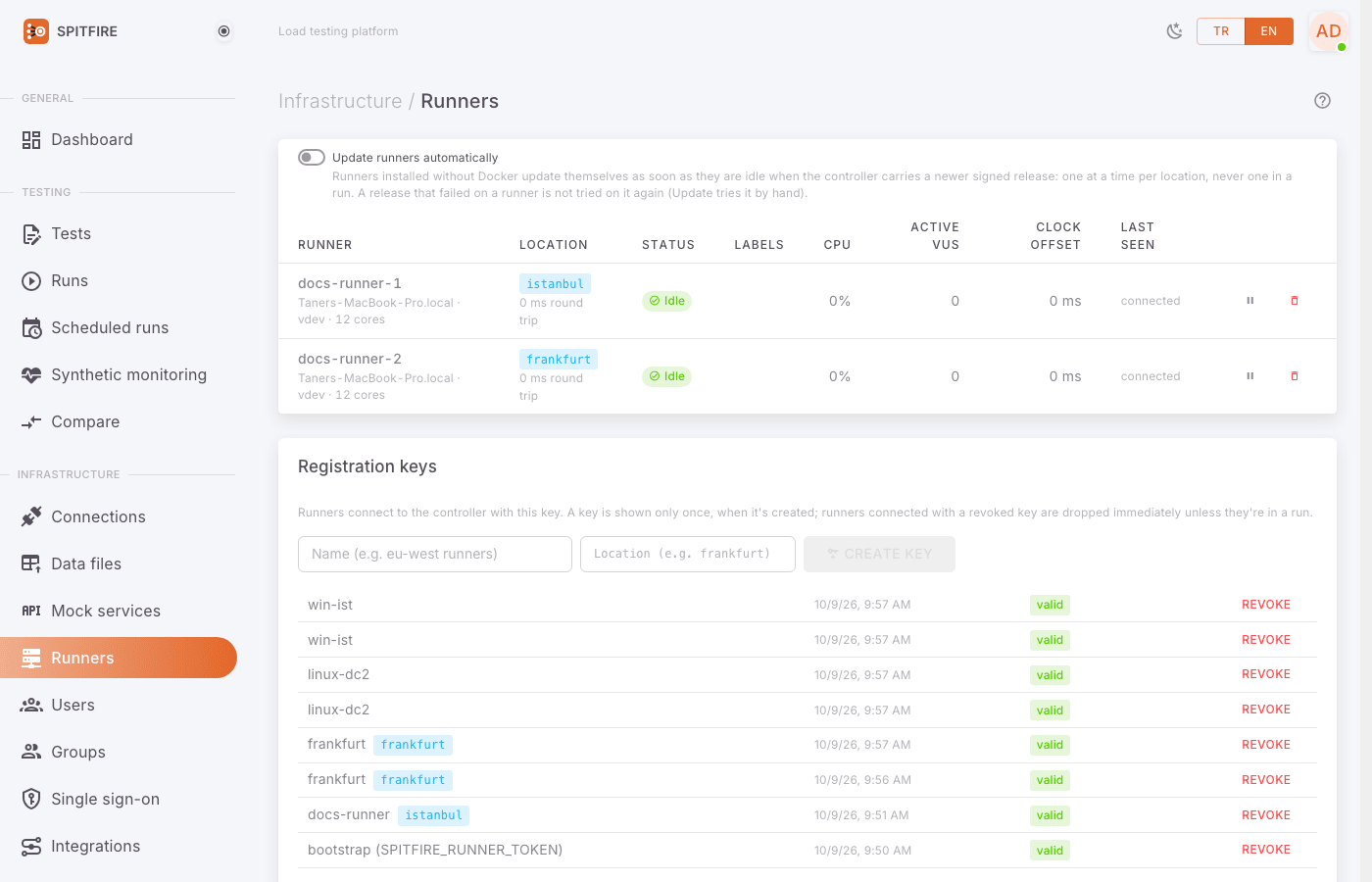 Runners page
| Symptom | Cause | Fix |
|---|---|---|
| A runner is Offline | The runner process/container stopped | Check on the runner server that the container or service runs; read its log. |
| A remote runner never connects | TCP from the runner to the controller's gRPC port (8471 on Docker) is closed | Open runner → controller:8471 outbound in the firewall. The runner connects outward; no inbound port is needed on the runner server. |
| The runner log says "controller certificate does not match the pinned key" | The TLS pin does not match: wrong address, a TLS-inspecting proxy in between, or the controller key changed | Use the pin (sha256:…) from the Runners page exactly. With a corporate CA certificate use --tls instead of the pin. Exempt port 8471 from TLS inspection. |
| The runner installs but "could not connect" | The token was revoked or is wrong | Take a new key and the ready command from Runners → Registration keys. With a revoked key a systemd runner stops with exit code 3 and is not restarted. |
| A runner is marked older release in yellow | The runner is older than the controller | Press Update (runners without Docker) or run the install command again on the runner server. |
| "Runner CPU is at its limit; results may be skewed" | The load generator saturated | Use more runners or split the load; this run's latencies include the runner's own queue. |
| "Not enough idle runners…" | Runners busy in another run | Wait for the run to end or add runners. |
License limits
| Symptom | Cause | Fix |
|---|---|---|
A run does not start: 402 license_limit with a clear message |
Planned VUs, request rate, duration, runners or locations exceed the license | Check the limit named in the message; lower the load (--scale) or upgrade on the License page. No run record is left behind. |
| "A license key is required to start new runs…" | The 14-day keyless period ended | Get a free key at spitfire.tr/ucretsiz-anahtar and paste it on the License page. Tests and results are kept. |
| "This key's activation period has ended." | A paid key was not entered within 30 days of being issued | Contact us for a new key. |
| "The license key is invalid…" | The key was copied incompletely or altered | Paste the SPF1.… key again, in one piece. |
| A schedule, channel or monitor shows Paused (license) | The license allows fewer | The oldest keep running; the rest are kept. Upgrade or delete the extra ones. |
| A user can sign in but cannot change anything | Active users above the limit | Reduce users or upgrade. |
Connection and network errors
| Symptom | Cause | Fix |
|---|---|---|
| "Cannot reach the server." | The browser cannot reach the controller | Check the address, the VPN, and that the controller is up. |
| "The controller is restarting; try again in a moment." | The controller is restarting or updating | Wait a few seconds. If it keeps happening, look at the log and the support bundle. |
| "A connection used by the test is not available." | The saved connection's target (DB, Kafka…) is unreachable from the runners | Test the connection on the Connections page; check the runner can reach that network. |
| "The destination changed: enter the secret values … again" | The connection's address changed | For safety, stored secrets are not sent to a new host; enter the password again. |
| A DNS or TLS error finding on a run | The target cannot be resolved from the runner's network, or its certificate is refused | Check DNS and the target's certificate on the runner server. |
| Sign-in: "Too many sign-in attempts…" | The sign-in limit (429) | Wait the given time. With many users behind one proxy/NAT, raise SPITFIRE_SIGNIN_BURST. |
| Every client has the same IP in the audit log | Spitfire is behind a proxy on a public address (cloud load balancer, Cloudflare) | Declare the proxy with SPITFIRE_TRUSTED_PROXIES (comma-separated CIDRs). |
Write protection refusals
A test with steps that change data (SQL/Mongo writes, a dangerous Redis command, an HTTP request marked as modifying data) needs explicit confirmation everywhere:
| Where | Symptom | Fix |
|---|---|---|
| Web UI | "This test modifies data; confirm to continue." | Tick the confirmation in the run dialog, or use Or confirm on my phone. |
| CLI / CI | Exit code 2 |
If intended, add --confirm-writes. |
| Schedule | Status did not start | Tick the write confirmation in the schedule dialog. |
| Synthetic monitor | The monitor is not created, or turned off | Tick I allow these steps to change data at every check. |
| Comparative run | The comparison cannot be started | Tick the confirmation for each environment in the dialog (in the CLI --confirm-writes confirms both). |
| Phone approval | "The phone approval is not valid…" | A request expires in 10 minutes and is used once; Ask again. |
Update problems
| Symptom | Cause | Fix |
|---|---|---|
| Update check: Check failed | The controller cannot reach spitfire.tr | Behind a corporate proxy, run the install command again with HTTPS_PROXY set (the proxy is passed on to the controller). Without internet access, turn it off with SPITFIRE_UPDATE_CHECK=off and follow spitfire.tr/surum-notlari. |
| "The release list was reached but its signature did not hold" | The list may have been altered on the way or on the server | Do not update based on it; check spitfire.tr/surum-notlari and let us know. With a mirror via SPITFIRE_UPDATE_FEED, make sure releases.json.sig is copied too. |
| Something broke after an update | A problem in the new release | Go back with Rolling back and send the support bundle. |
| Runners show older release | Remote Docker runners do not update themselves | Run the runner install command again on the runner server; for runners without Docker, Update. |
Database
| Symptom | Cause | Fix |
|---|---|---|
| The controller does not come up; database connection errors in the log | The Postgres container/pod is down, or the disk is full | Check with docker compose -p spitfire -f deploy/docker/docker-compose.yml ps (Kubernetes: kubectl -n spitfire get pods); read the postgres log and check disk space. |
| Database errors on System events, or events that could not be stored | The database is slow or overloaded | Check disk and CPU; consider shorter data retention on the License page. |
| Stored connection secrets cannot be read | SPITFIRE_SECRET_KEY changed or was lost |
Restore it from your backup of deploy/docker/.env (or the spitfire-secrets Secret). Without it, the secrets must be entered again. |
Updating
When a new release is out, installation admins see a banner at the top ("Spitfire … is out"); What's new and how to update shows the command. The same is always on the License page, in the Version and updates card: Installed version, Installation, Update check, Outbound proxy and Update command.
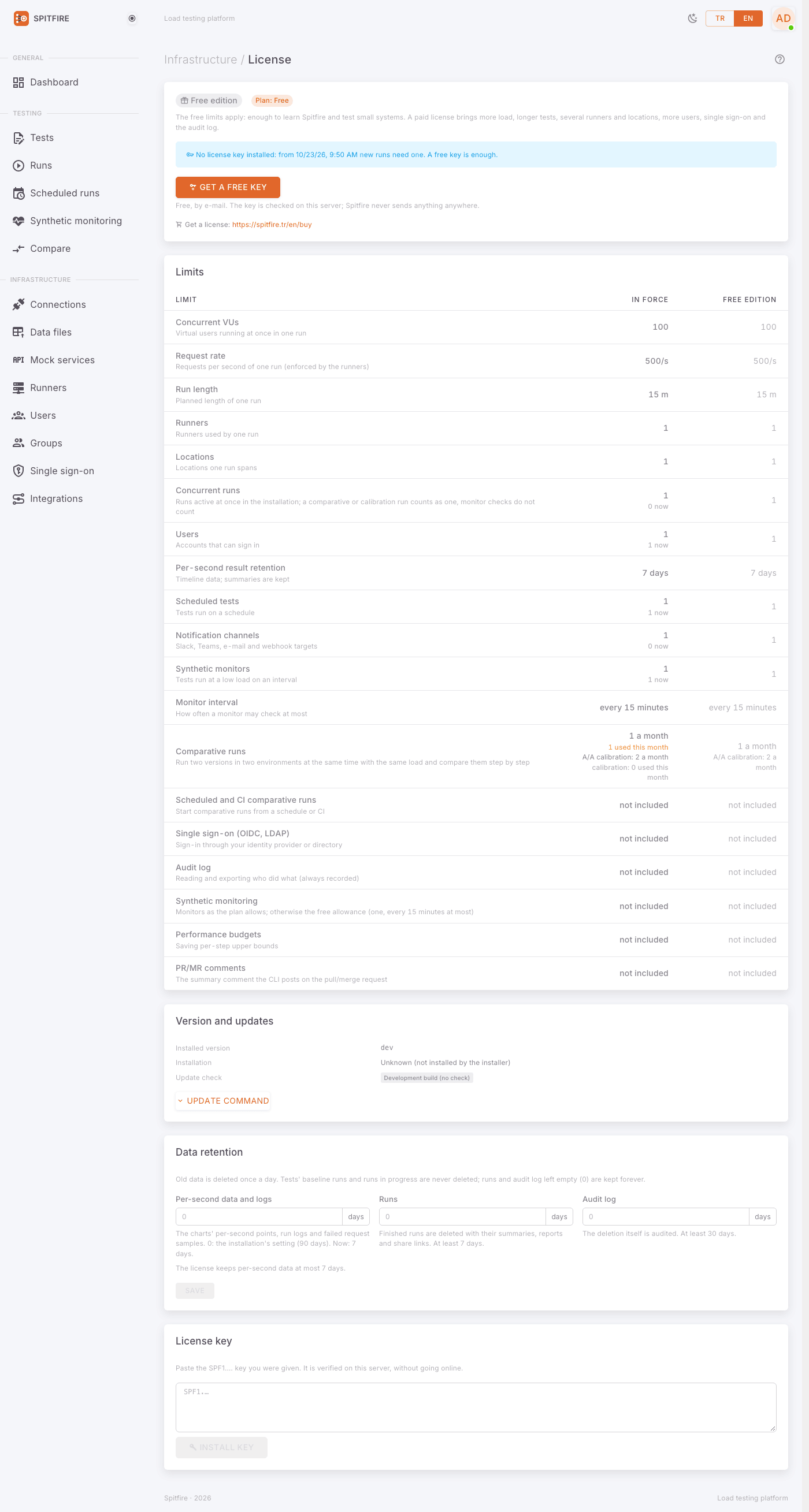 Version and updates card
Step by step:
Do not update while a run is going. Wait for running runs to end.
Copy the command from the Version and updates card on the License page (or check again with Check now).
Run it on the server where the controller is installed:
# Linux / macOS (Docker) curl -fsSL https://spitfire.tr/install.sh | bash -s -- docker # Kubernetes curl -fsSL https://spitfire.tr/install.sh | bash -s -- kubernetes# Windows (PowerShell) irm https://spitfire.tr/install.ps1 | iexIf you installed into another folder, the card gives the command with
SPITFIRE_DIR=….The command first backs up the database (when the version changes), keeps your settings (
deploy/docker/.envor thespitfire-secretsSecret) and data, and installs the new release.Runner servers in other locations have their own command on the card (
curl -fsSL https://spitfire.tr/install.sh | bash -s -- runner). Keep remote runners on the controller's release; the Runners page marks a different one in yellow. For runners without Docker (systemd, Windows service), the Update button or Update runners automatically is enough.
A security update banner ("Security update: Spitfire …") closes a vulnerability; update as soon as you can.
Backups and restore
What is backed up automatically
- On every update that changes the version, the database is first dumped to
~/spitfire/backups/*.dump. The newest 5 are kept.--no-backup(Windows:-NoBackup) skips it; not recommended. - Back up the keys yourself as well: the
deploy/docker/.envfile (Docker) or thespitfire-secretsSecret (Kubernetes). If theSPITFIRE_SECRET_KEYin it is lost, stored connection secrets cannot be read.
./uninstall.sh docker --purge deletes the data and keys too. To only uninstall, run it
without --purge: data and keys are kept.
Rolling back
If an update went wrong, in the install folder:
~/spitfire/install.sh docker --rollback          # Docker
~/spitfire/install.sh kubernetes --rollback      # Kubernetes
~/spitfire/install.sh docker --rollback ~/spitfire/backups/<dump>.dump # a specific dump.\install.ps1 -Rollback # Windows
.\install.ps1 -Rollback -RollbackDump <file>What happens:
- The current database is dumped first, too.
- The chosen dump (the newest by default) is restored.
- The release that took that dump is started.
Changes made after that dump are lost. Running it again rolls forward. Without a terminal (e.g.
from a script) it needs --yes.
Contacting support
If none of the above solved it, write to support:
- Turkish: iletisim@spitfire.tr
- English: contact@spitfire.tr
Include the following (a complete e-mail speeds the fix up by days):
- What happened? What you expected and what you saw, short and concrete.
- When? Date, time and time zone.
- The error code (if any) — the Error code / request id from the UI.
- The support bundle — System events → Download support bundle, or
./install.sh --support-bundle. You can look inside before sending it. - Version and install kind — Installed version and Installation (Docker, Kubernetes, Windows) from the License page.
- Steps — what you did to reproduce it; a screenshot helps.
- For a run, its link or id; for CI, the CLI output (with the token removed) and the exit code.
Never put your license key, API tokens, passwords or the deploy/docker/.env file in
the e-mail. The support bundle does not contain them anyway.
Related pages
- CI/CD integration — exit codes and CI errors
- Schedules and monitoring — notification channel and schedule problems
- Observability — when backend data does not arrive
- Mock, chaos and capacity
- System events
In Spitfire: /system-events· RunnersIn Spitfire: /runners· LicenseIn Spitfire: /license