Version: 0.21.0This documentation is for Spitfire 0.21.0.
SQL: query suggestions from the schema
What it does
Suggest from schema reads a SQL connection's database schema (tables, columns, primary keys, indexes, foreign keys) and suggests realistic read queries for the tables you choose: lookup by primary key, lookup by an indexed column, a join over a foreign key, a parent's child rows, an ordered page and a range count. Each suggestion is checked with EXPLAIN; those that would scan a whole table are flagged. The suggestions you pick are added to a test as one query mix step or as one step per query.
Everything runs on your own Spitfire installation: queries go from your Spitfire server to your database, nothing is sent anywhere else, and no external or AI service is used. The dialog says so too: Everything runs from this Spitfire server against your database…
When to use it
- When you have no production statistics (
pg_stat_statements) and want a meaningful read load quickly. - To see how a new schema or an index change behaves under typical access patterns.
Who can use it
Installation admins only. The API refuses workspace admins and users at every step (403). It also needs a browser session; it does not work with an API token. The button appears only on PostgreSQL, MySQL / MariaDB, SQL Server and Oracle connections.
Before you start
Using this feature on a production database is strongly discouraged. Catalog reads and EXPLAIN put a light load on the database. You are responsible for the account you provide.
- Create a separate, least-privilege, read-only user for this in the database; never use root, a superuser or an admin. The dialog shows a ready-made script for each database (below).
- Put that user in the connection's Username and Password fields.
- If the connection goes to production, tick Production database; Spitfire then shows a strong warning and asks for an extra confirmation.
Step by step
1 Check
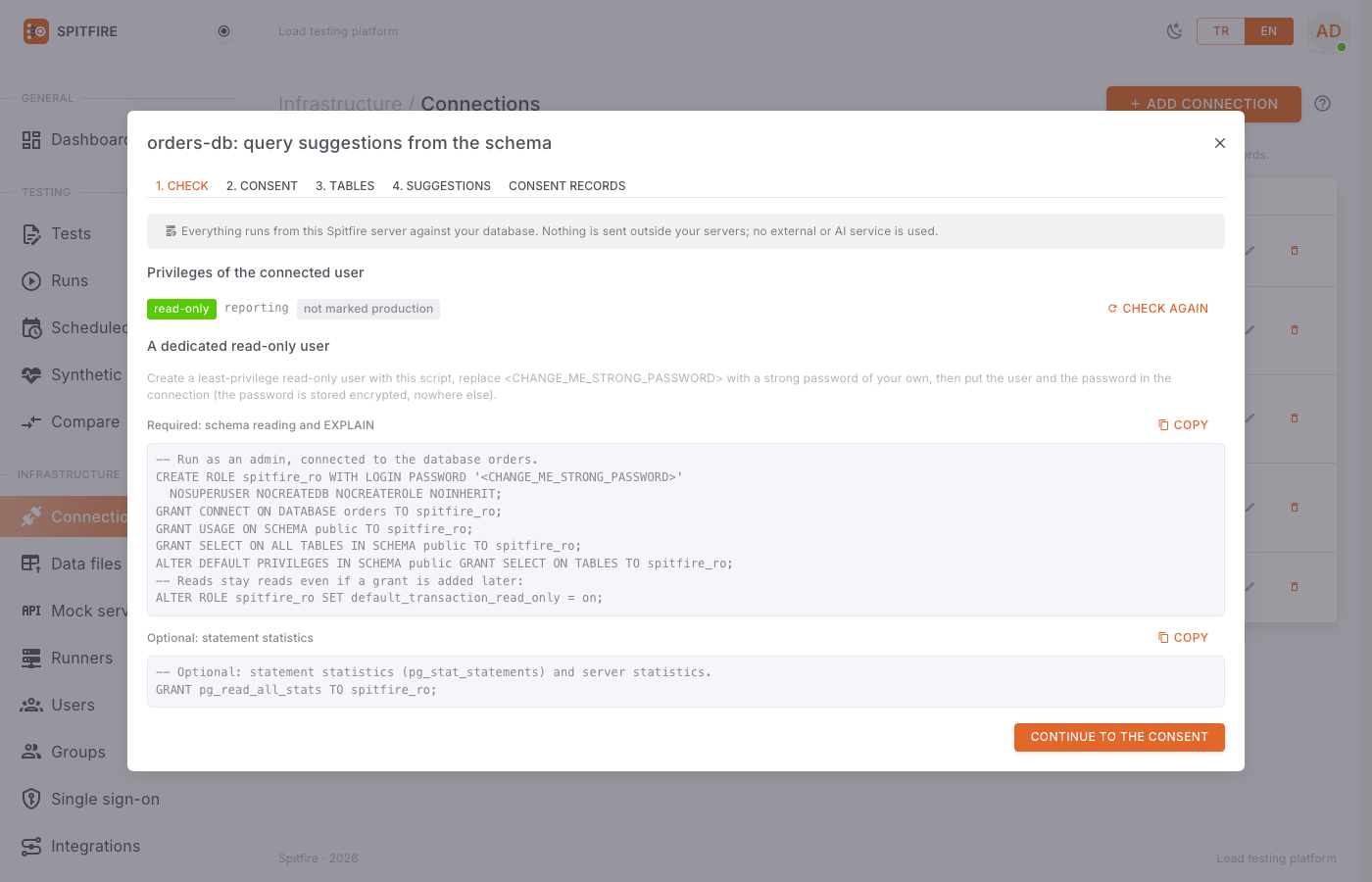 Privilege check
On the Connections page click Suggest from schema in the SQL connection's row. (The same dialog also opens from a SQL step via Bulk add / import → Suggest from schema.)
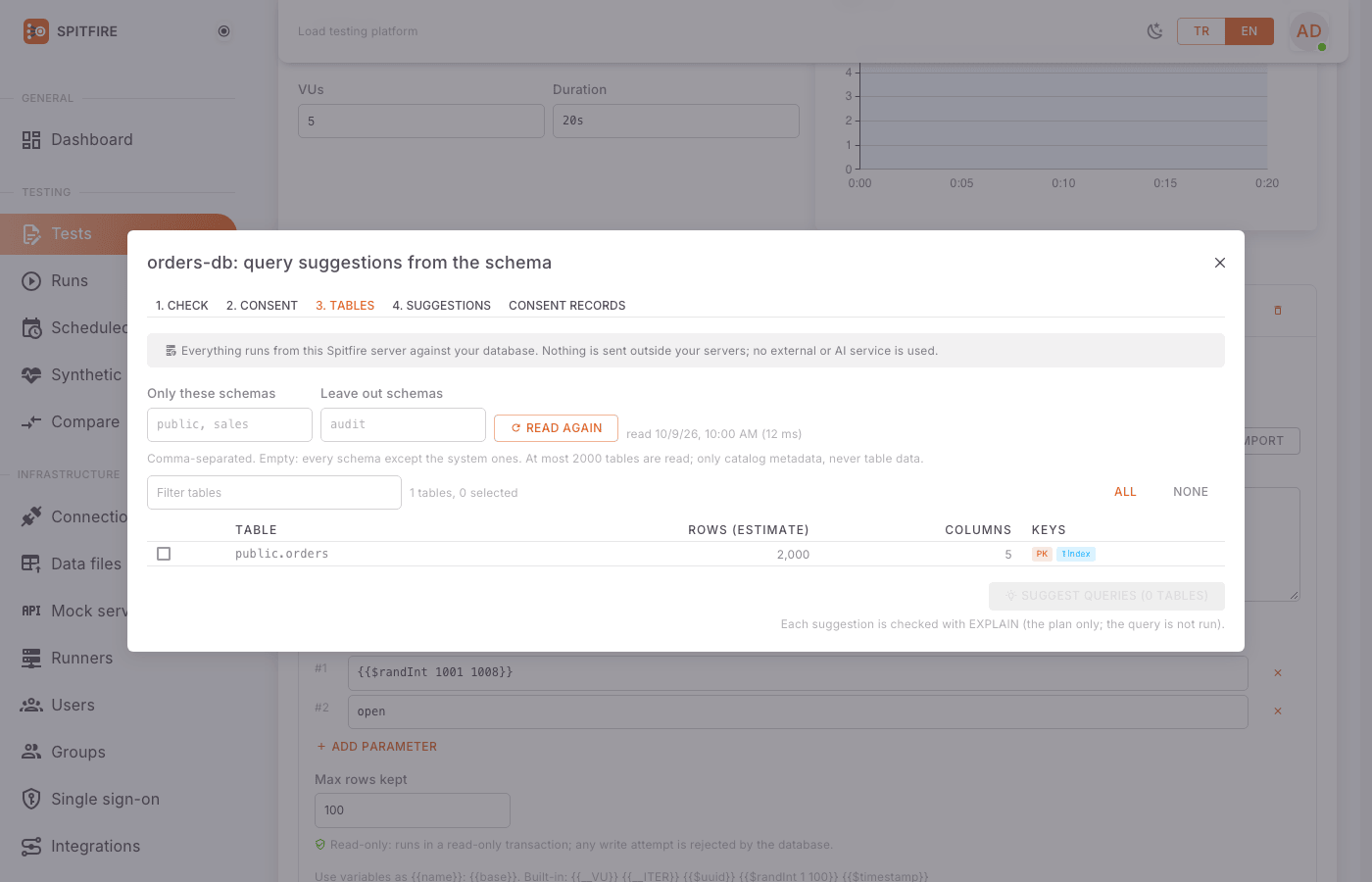 Suggestions dialog opened from a SQL step
The orders-db: query suggestions from the schema dialog opens on the 1. Check tab. Spitfire checks the connected user's privileges read-only (Checking privileges (read-only)…):
- PostgreSQL: role attributes and table/schema privileges,
- MySQL:
SHOW GRANTS, - SQL Server:
sysadmin/db_owner/db_datawritermembership and database permissions, - Oracle: roles and
SESSION_PRIVS.
Under Privileges of the connected user the result is shown in a colour:
- green read-only: the ideal case;
- orange has write privileges: you can go on, but a separate read-only user is recommended;
- red superuser / admin: going on needs an extra confirmation;
- could not be checked: the privileges could not be read. Next to it is a PRODUCTION or not marked production badge. After changing the user, click Check again.
The A dedicated read-only user section shows the ready-made script for your database type:
- Required: schema reading and EXPLAIN — PostgreSQL: a
LOGINrole withCONNECT,USAGE,SELECTand default privileges; MySQL:SELECT, SHOW VIEWon the database; SQL Server:db_datareader,VIEW DEFINITION,SHOWPLAN; Oracle:CREATE SESSION,SELECTon the schema's tables,SELECT_CATALOG_ROLE. - Optional: statement statistics — PostgreSQL
pg_read_all_stats; MySQLPROCESSandperformance_schema; SQL ServerVIEW SERVER STATE. Take the script with Copy, replace<CHANGE_ME_STRONG_PASSWORD>with a strong password of your own and run it on the database. Spitfire does not generate passwords. Then put the user and password into the connection.
- Required: schema reading and EXPLAIN — PostgreSQL: a
Click Continue to the consent.
2 Consent
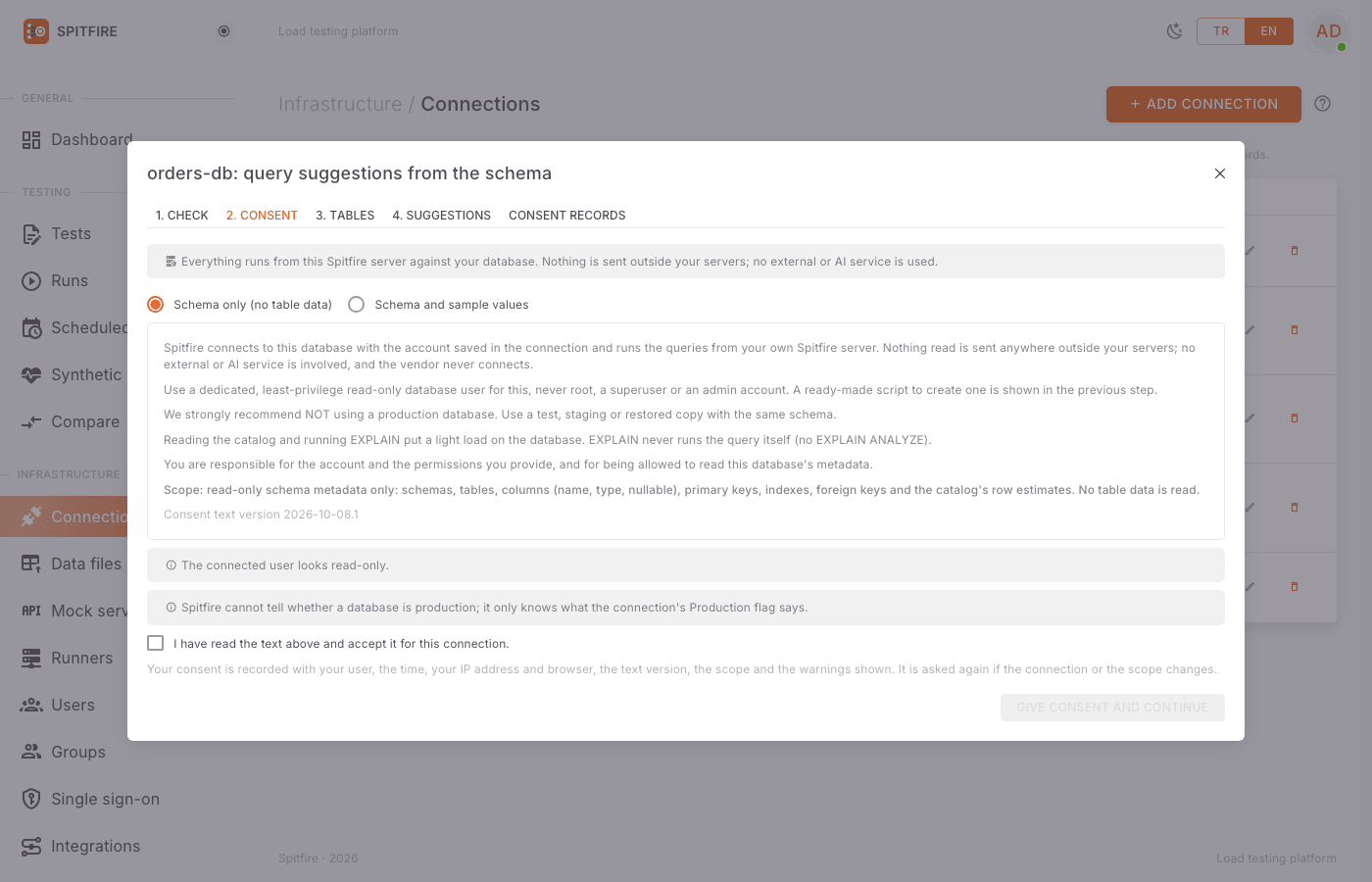 Consent screen
- Pick the Scope:
- Schema only (no table data): only catalog metadata is read.
- Schema and sample values: sample values may also be read from columns you choose (below).
- Read the consent text carefully. It is versioned (Consent text version …) and exists in TR/EN. It says what is read, that a separate least-privilege read-only user must be used, that a production database is strongly discouraged, that catalog reads and EXPLAIN add a light load, and that the customer is responsible for the account. The warnings shown for that connection are listed under it.
- Tick I have read the text above and accept it for this connection.
- If the user is a superuser / admin, or the connection is marked Production, a second, red checkbox appears: I understand the warning in red (production database or superuser/admin account) and want to continue anyway. You cannot go on without ticking it too.
- Click Give consent and continue.
How the consent is recorded: your consent is stored verbatim with your username and e-mail, the time, IP address, browser, the text version and language, the scope, the privilege check result and the warnings shown (it is also written to the audit log). A fingerprint of the connection is stored too: type, host, port, database, user, SSH host and user, production flag. Secrets never enter the fingerprint.
When it is asked again: when the connection's fingerprint (e.g. the host or the user), the scope or the consent text version changes, the consent no longer applies and is asked again. Without a valid consent, reads are refused: An installation admin's consent for this connection (as it is now) and scope is needed first.
3 Tables
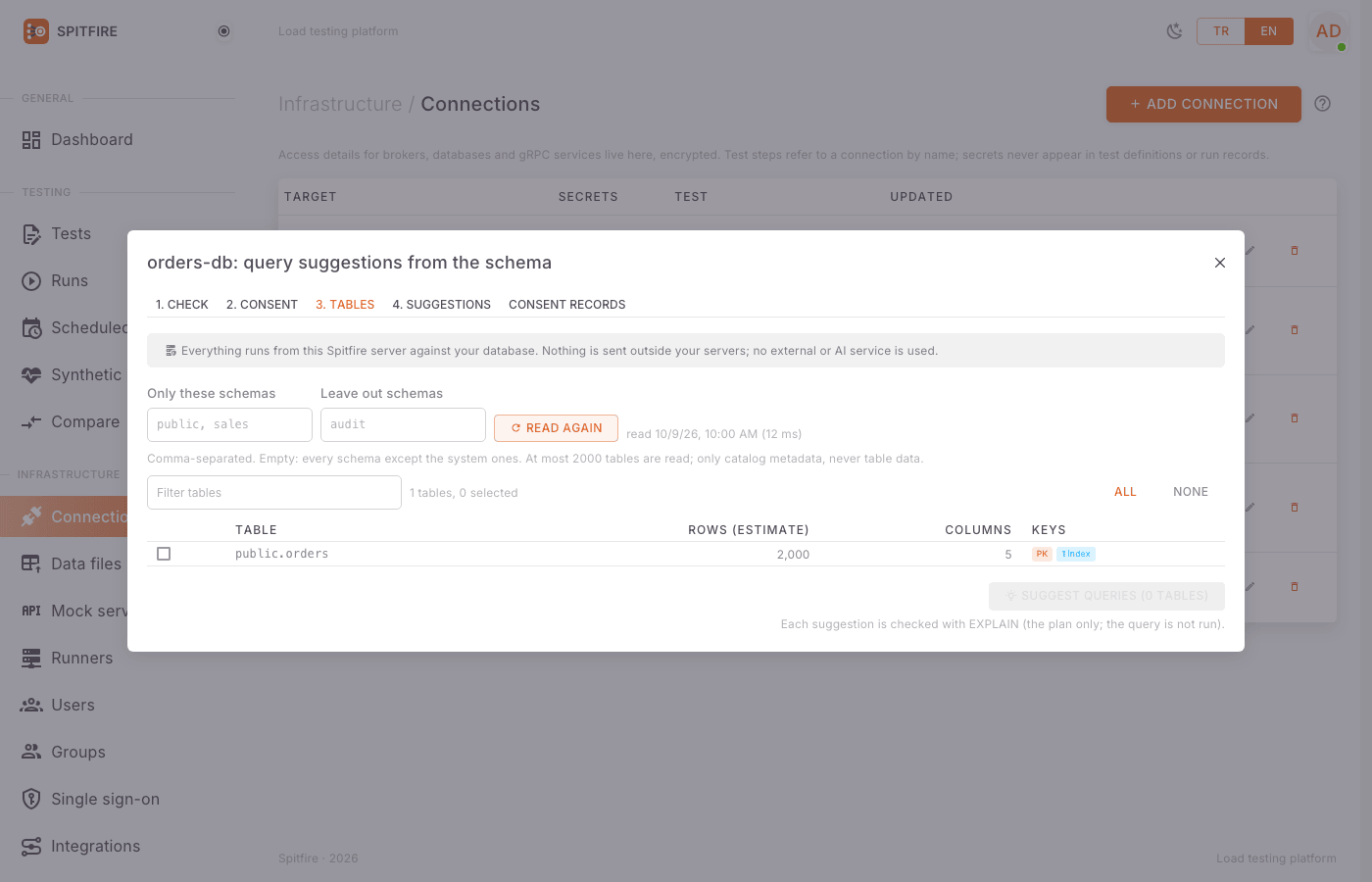 Tables
- If you already have a valid consent, the dialog opens straight on the 3. Tables tab.
- Optionally write schema names, comma-separated, in Only these schemas and Leave out schemas. Left empty, every schema except the system ones is read.
- Click Read schema. What is read: schemas, tables, columns (name, type, nullable), primary keys, indexes, foreign keys and the catalog's row estimates. Reading runs inside a read-only transaction where the database supports one, with a timeout; at most 2000 tables are read. Table data is never read.
- The result is kept per connection; the top reads read … (… ms). If the schema changed, click Read again.
- The table list shows Table, Rows (estimate), Columns and Keys (index and foreign key counts). Search with Filter tables and tick rows to select them (or All / None).
- Click Suggest queries (N tables). Each suggestion is checked with EXPLAIN (the plan only; the query is not run).
4 Suggestions
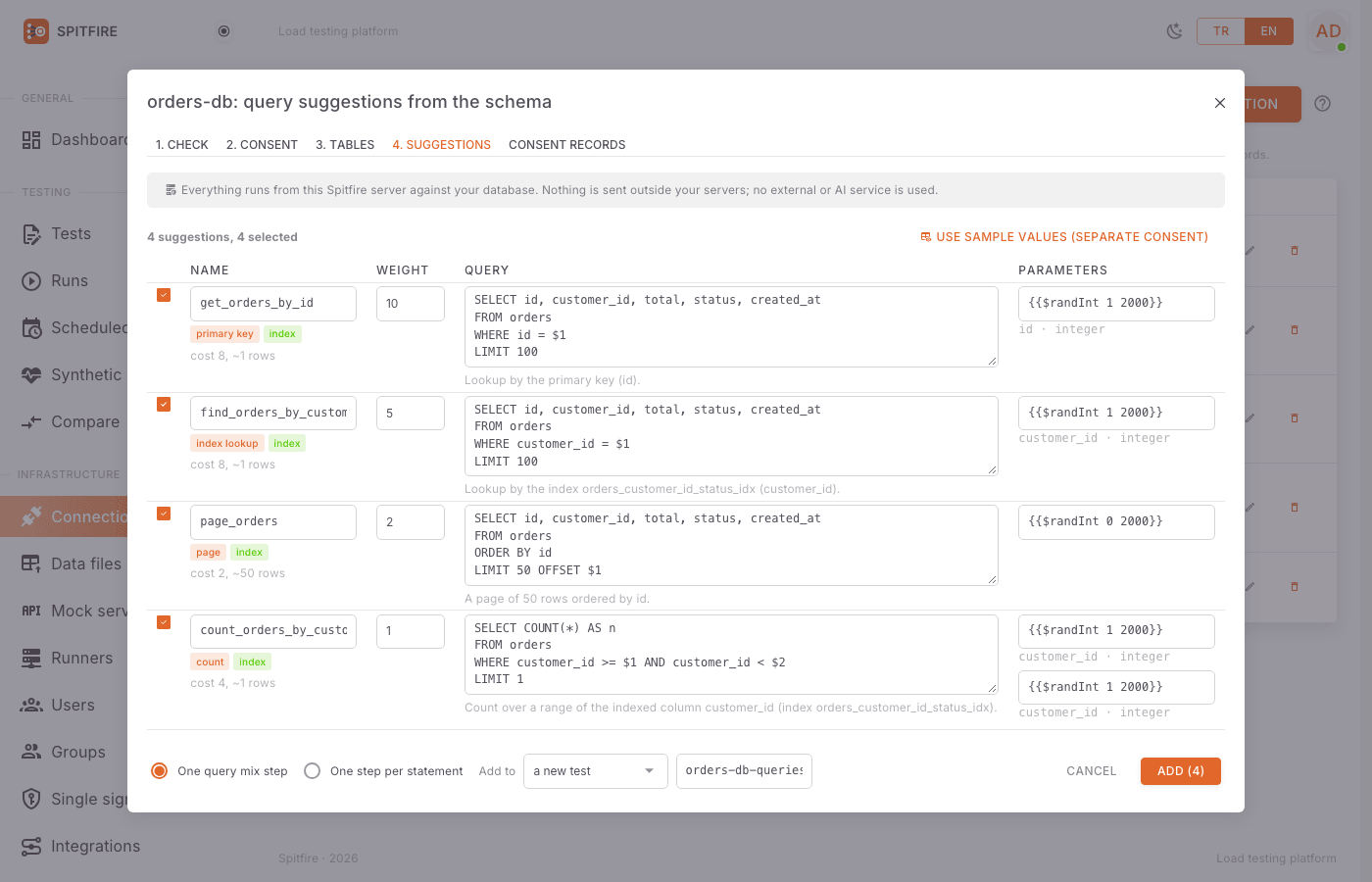 Suggestions
The suggestion table's columns are Name, Weight, Query and Parameters; all of them can be edited. Each row also has:
- under Name, a badge with its kind: primary key, index lookup, join, children, page or count;
- next to it, a badge with the EXPLAIN result: index (good), caution: full table scan, caution: full scan, high cost or EXPLAIN failed; below it cost …, ~… rows;
- under Query, the rationale: e.g. Lookup by the primary key (id)., Lookup by the index idx_orders_customer (customer_id)., A row with its parent customers (foreign key …).
The summary line reads N suggestions, M selected; with full scans a N full table scans badge appears.
EXPLAIN only asks for the plan and never runs the query: EXPLAIN on PostgreSQL/MySQL (never EXPLAIN ANALYZE), SHOWPLAN_XML on SQL Server, EXPLAIN PLAN on Oracle. Every suggestion has a row limit (LIMIT, TOP or FETCH FIRST), uses the database's placeholders, comes with suggested parameter bindings and passes the write guard as a read.
To add suggestions to a test:
- Untick the rows you don't want; edit name, weight, SQL and parameters as needed.
- Output: One query mix step or One step per statement.
- If you opened the dialog from the Connections page, pick an existing test or a new test in Add to (for a new test, write its New test name). If you opened it from a SQL step, the suggestions are added to that step.
- Click Add (N). Use Open in the editor in the Added to …. message to go to the test, review it and save.
Sample values
To feed the parameters with real values:
- On the suggestions screen click Use sample values (separate consent). The dialog goes back to 1. Check for the Schema and sample values scope; give the consent again for that scope.
- On the suggestions screen click the button next to a parameter (Read sample values for this column into a data file).
- Spitfire reads, read-only, at most 1,000 distinct values from a bounded sample of the table (
TABLESAMPLE/SAMPLEwhere supported) and saves them as a data file on the Spitfire server. The parameter is bound as{{data.column}}; the dialog lists Data files with sample values: ….
The values are never written to the log or the audit log; only their counts are.
Consent records
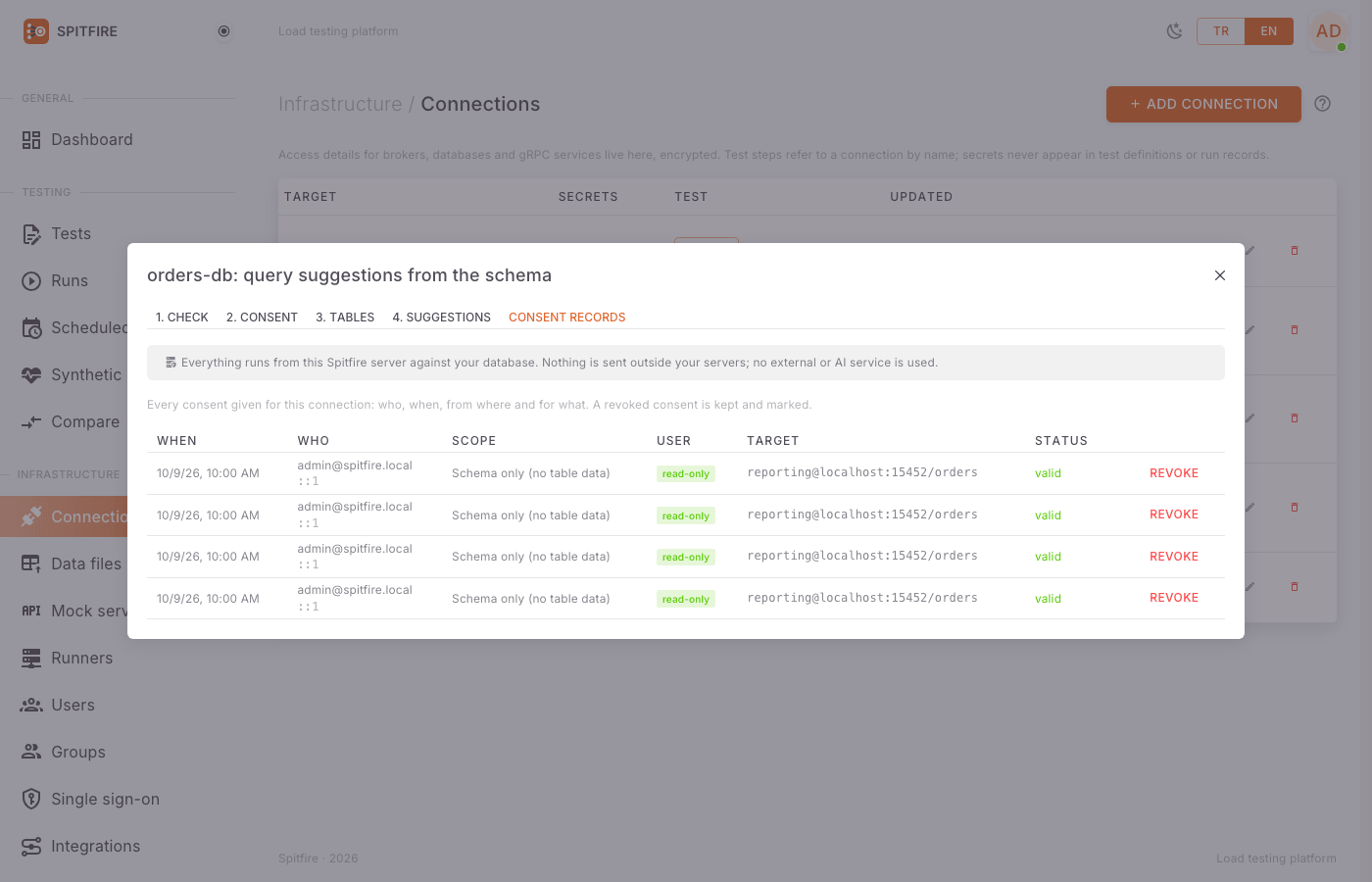 Consent records
The Consent records tab lists every consent given for this connection: When, Who, Scope, User (privilege level, plus a PRODUCTION badge when relevant), Target and Status (valid, outdated (the connection or the text changed), or revoked … by …). When the extra red warning was confirmed, a red check icon (The extra warning was confirmed) appears next to the privilege level. You can cancel a consent with Revoke; a revoked consent is kept and marked, not deleted.
What is logged
Every privilege check, schema read, EXPLAIN batch and sample read is written to the log and the audit log: the connection, the user, counts and durations. No secrets and no data values are written.
Common problems
Symptom: No Suggest from schema button. Cause: You are not an installation admin, or the connection is not a SQL type. Fix: Ask an installation admin for help.
Symptom: An installation admin's consent for this connection (as it is now) and scope is needed first. Cause: Consent was never given, or the connection (host, user, SSH, production flag), the scope or the text version changed. Fix: Give the consent again via 1. Check → Continue to the consent.
Symptom: Confirm the extra warning (production database or superuser account) to continue. Cause: The user is a superuser/admin or the connection is marked production. Fix: Preferably switch to a read-only user; if you still go on, tick the red checkbox.
Symptom: The consent text has changed; read it again. Cause: The consent text version changed while the dialog was open. Fix: Close and reopen the dialog, read the text and consent.
Symptom: The privilege level is could not be checked. Cause: The user cannot read the catalog views, or no connection could be made. Fix: First confirm the connection with Test; grant the required privileges from the script.
Symptom: No tables in the chosen schemas (or the user cannot see them).
Cause: Wrong schema filter, or the user has no SELECT on the tables.
Fix: Clear the filters; grant the SELECT / USAGE privileges from the script.
Symptom: Only the first 2000 tables were read; narrow the schemas. Cause: The database has more than 2000 tables. Fix: Narrow the read with Only these schemas.
Symptom: No suggestions: the selected tables have no primary key, index or foreign key to build on. Cause: The tables have no keys or indexes. Fix: Pick tables with keys, or write the queries by hand.
Symptom: Many caution: full table scan badges. Cause: No suitable index on the column the query uses, or the planner chose a scan because the table is small. Fix: These suggestions may be expensive under load; untick them or consider the index.
Symptom: The column has no values in the sample. Cause: The sample is empty or the column is all NULL. Fix: Pick another column or fill the parameter by hand.