Version: 0.21.0This documentation is for Spitfire 0.21.0.
HTTP, WebSocket and SSE
HTTP(S), WebSocket and Server-Sent Events (SSE) steps carry their address in the step itself, so they need no connection. A connection is used only when the server requires a client certificate (mTLS) or you need to trust a private CA.
HTTP
What it does
Sends requests to a REST, JSON, XML or form-based web service like a real user: method, URL, headers, query parameters and body. You can extract a value from a response (e.g. a login token) to use in later steps, and verify responses with checks on status, latency, a JSON field, XPath, a header and more.
When to use it
- To measure the HTTP endpoints of your web application, API gateway or microservice under load.
- To chain a user flow such as login → list → add to cart → pay.
- To run tests that came from a browser recording (HAR) or an API document (see Importing).
Step by step
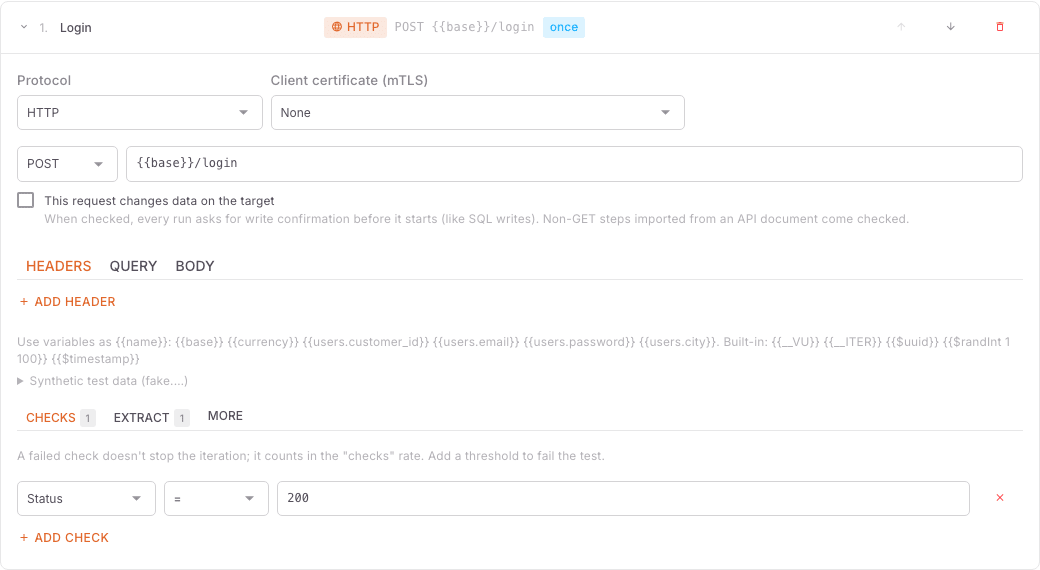 HTTP step
- On the Tests page open the test and switch to the editor (or New test).
- In the Scenarios & steps tab click Add step.
- Give it a meaningful Step name (e.g. "My orders"). The name appears in the result tables.
- Keep HTTP as the Protocol.
- Enter the Method (GET, POST, PUT, PATCH, DELETE…) and the URL. It must be a full
http://orhttps://address; to keep the common part in a variable, write{{base}}/api/ordersand definebasein the General & variables tab. - Add Headers (e.g.
Authorization: Bearer {{token}}) and Query parameters if needed (Add header, Add parameter). - Choose the Body type: None, JSON, XML, Form (urlencoded), Form (multipart / files) or Raw. Content-Type is set from the body type unless you set it.
- If the request creates, updates or deletes data on the target, tick This request changes data on the target. Every run of a test with such a step asks for an extra confirmation before it starts.
- Add checks in the Checks tab (e.g. Status = 200, Latency (ms) < 500).
- To take a value from the response, use the Extract tab (e.g. JSONPath
$.token→token). - For steps that should run once per virtual user (VU), such as a login, tick Run once per VU.
- Send a single iteration with Try it at the top of the editor to see the request and the response, then Save.
Example
Two steps that log in once to get a token, then fetch the order list with that token on every iteration:
[
  {"id": "login", "name": "Login", "once": true,
   "request": {"method": "POST", "url": "{{base}}/api/login",
     "body": {"type": "json", "content": "{\"user\": \"vu{{__VU}}\", \"password\": \"{{password}}\"}"}},
   "extract": [{"var": "token", "from": "jsonpath", "expr": "$.token"}],
   "checks": [{"type": "status", "value": 200}]},
  {"id": "orders", "name": "My orders",
   "request": {"url": "{{base}}/api/orders",
     "headers": [{"key": "Authorization", "value": "Bearer {{token}}"}]},
   "checks": [{"type": "status", "value": 200}, {"type": "latency", "op": "lt", "value": 500}]}
]Spitfire has no separate "authentication" section; a credential is a header. For a Bearer token, extract token from a login step as above and use it in the Authorization header. For a fixed API key, keep it in a variable and write {{apiKey}} in the header.
Test-wide HTTP options
The editor's Options tab applies to every HTTP request in the test:
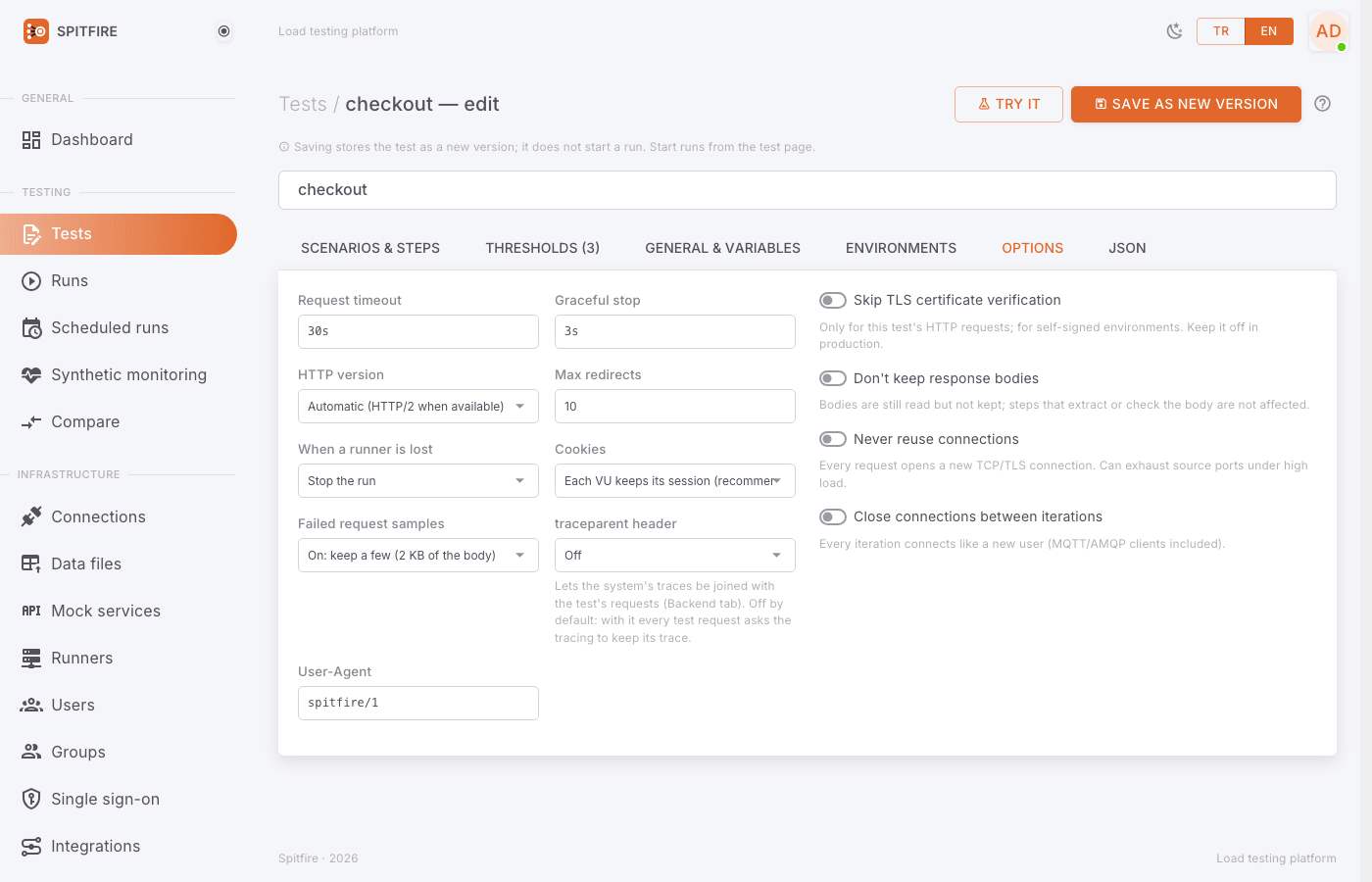 Options tab
| Option | Default | Description |
|---|---|---|
| Request timeout | 30s | The longest a request may take. Beyond it the request counts as a timeout error. |
| HTTP version | Automatic (HTTP/2 when available) | HTTP/1.1 only turns HTTP/2 off. |
| Max redirects | 10 | The most 3xx redirects followed. |
| Skip TLS certificate verification | off | Turns certificate verification off for this test's HTTP requests only; for self-signed test environments. When on, saving shows the warning TLS certificate verification is disabled. |
| Cookies | Each VU keeps its session (recommended) | Each VU keeps its own cookies, like a browser. Off sends only a step's own Cookie header. |
| Never reuse connections | off | Every request opens a new TCP/TLS connection. Can exhaust source ports under high load. |
| Close connections between iterations | off | Every iteration connects like a new user. |
| Don't keep response bodies | off | Saves memory; steps that extract or check the body are not affected. |
| Failed request samples | on | Keeps 2 KB of the body of a few failed responses. Turn it off if responses must not be stored. |
Client certificate with mTLS
If the server requires a client certificate (mTLS), or its certificate is signed by a private CA:
- Click Connections → Add connection and pick Client certificate (mTLS) as the Type.
- Give it a Name (e.g.
partner-mtls). - Fill Client certificate (PEM), Client key (PEM, stored encrypted) and, if needed, CA certificate. At least the certificate or the CA is required. Set Server name (SNI) when the certificate's name differs from the address.
- Save. Saving checks that the certificate and the key match; Test checks the certificate's expiry.
- In the test editor, pick this connection in the HTTP (or WebSocket / SSE) step's Client certificate (mTLS) field. The default is None.
{"id": "pay", "name": "Payment (mTLS)", "connection": "partner-mtls",
 "request": {"method": "POST", "url": "https://partner.example.com/pay",
   "body": {"type": "json", "content": "{\"amount\": 10}"}, "modifiesData": true}}
The key never enters the test definition; the step carries only the connection's name.
Metrics it produces
| Metric | Meaning |
|---|---|
reqs |
Requests sent |
req_duration |
Total request time (ms); p50/p95/p99 come from this metric |
req_failed |
Rate of failed requests (connection errors, timeouts, 4xx/5xx) |
http_req_connecting |
Time to set up the TCP connection |
http_req_tls_handshaking |
TLS handshake time |
http_req_waiting |
Time waiting for the first byte (TTFB) |
data_sent, data_received |
Data sent and received |
checks |
Rate of passed checks |
Threshold example: {"metric": "req_duration", "filter": {"step": "orders"}, "expr": "p(95)<500"}.
WebSocket
What it does
Connects to a WebSocket server (chat, live notifications, a game server…), sends messages and waits for the messages the server pushes. Each VU keeps one connection per URL, like a browser tab: the first WebSocket step connects, later steps reuse that connection.
When to use it
When your server holds long-lived connections and you want to know how many concurrent connections, what message latency or what push rate it can handle.
Step by step
- Add step → pick WebSocket as the Protocol.
- Write the URL with
ws://orwss://. - Pick an Action:
- Send and wait for the reply: sends the message and waits for the reply; the latency runs from sending to the reply, and the reply goes to the checks.
- Send: sends the message without waiting for a reply.
- Wait for a message: waits for the next message the server pushes. Messages that arrive between steps are buffered.
- Close the connection: closes the connection; the next WebSocket step reconnects.
- Type the text to send in Message. To send a binary frame, tick Message is base64 (sent as a binary frame) and write base64.
- To wait for a specific reply, fill Text the awaited message contains; messages without it are skipped.
- If the Wait (default 10s) runs out, the step fails.
- If the handshake needs headers or a subprotocol, expand Handshake headers and subprotocol (Subprotocols (comma-separated)).
- If the messages change data, tick These messages change data on the target; the editor shows it as the warning WebSocket messages change data on the target on every iteration.
{"id": "ws-ping", "name": "WS ping", "protocol": "ws",
 "ws": {"action": "request", "url": "wss://chat.example.com/ws",
"message": "{\"type\": \"ping\"}", "match": "pong", "wait": "5s"}}Metrics it produces
req_duration (from sending to the reply or the awaited message), req_failed, and, on the step that connected, ws_connecting (WebSocket handshake time).
SSE
What it does
Opens a Server-Sent Events stream (GET, Accept: text/event-stream) and closes it once the given number of events arrived. It tests one-way live streams such as prices, scores or notifications.
Step by step
- Add step → pick Server-Sent Events as the Protocol.
- Write the stream's URL.
- To count only certain events, fill Event type (e.g.
price) and/or Text in the data. - The stream closes once Events (default 1) events arrived.
- If the Wait (default 30s) runs out, the step fails.
{"id": "prices", "name": "Price stream", "protocol": "sse",
 "sse": {"url": "https://api.example.com/events", "event": "price", "count": 5, "wait": "30s"}}
The last event's data goes to the checks; its type and id are in the Sse-Event / Sse-Id headers.
Metrics it produces
req_duration (to the last awaited event), req_failed and sse_time_to_first_event (from opening the stream to the first event).
Common problems
Symptom: High req_failed, error type "connection refused".
Cause: The target port is closed, the service is down, or the runner cannot reach it.
Fix: Check the URL's host and port; try curl -v <url> from the runner machine.
Symptom: x509: certificate signed by unknown authority.
Cause: The target is signed by a private CA.
Fix: Put the CA in the CA certificate field of a Client certificate (mTLS) connection and pick it in the step. Only in a test environment may you temporarily use Options → Skip TLS certificate verification.
Symptom: The server answers 400 No required SSL certificate was sent or the handshake fails.
Cause: The server requires mTLS and the step presents no certificate.
Fix: Follow Client certificate with mTLS.
Symptom: 401/403 errors that grow after the first iterations. Cause: The token expires, or the login step runs only once. Fix: Make the token outlive the run, or untick Run once per VU on the login step.
Symptom: Starting a run shows This test modifies data; confirm to continue. Cause: An HTTP step has This request changes data on the target ticked (or the test has an approved SQL, MongoDB or Redis write). Fix: Tick I understand this test changes real data; start it in the run dialog. This is a safety measure; make sure you target the right environment.
Symptom: A WebSocket Wait for a message step times out. Cause: The expected text never arrives, or the message was consumed by an earlier step. Fix: Check Text the awaited message contains; raise the Wait; use Try it to see what arrives.